Migration for non-WiscWeb sites
The process for migrating your non-WiscWeb UW Theme Classic site to UW Theme 2.0 depends on how customized your site is.
If your site is small enough and without heavy customization, we strongly encourage you to explore rebuilding the site from scratch in WiscWeb.
If moving to WiscWeb is not an option, the content below describes best practices for approaching your migration.
Preparing for your migration
- Update UW Theme Classic to the latest version.
- Audit your site content
- Delete any content you no longer need (ideally delete your draft content as well — draft content will migrate).
- If you have a child theme, remove any customizations you can. Keep in mind that in many cases, CSS customizations are no longer needed because the Block Editor is much more expressive than the Classic Editor.
- Remove any 3rd-party plugins if possible.
- In general, simplify your site as much as you can before migrating.
- Purchase an Advanced Custom Fields Pro license if needed. ACF Pro is not bundled in UW Theme 2.0 (it does not use it). If you have a child theme or plugin that will still depend on ACF Pro, you will need to buy a license for it.
Set up a staging site
We strongly recommend setting up a staging or test site for running your migration. While migrating a production site in place is possible, we only suggest trying to do so for small, simple sites, and only after making a complete backup of your site.
Before you proceed with the migration, your staging site should be an exact replica of your production site, except for the domain. Copy all of your production content (database, media uploads, UW Theme Classic and child theme, plugins) to the staging site. If your site is hosted in DoIT Web Hosting, see their documentation for requesting and setting up a staging site.
It’s a good idea to note the date and time you copied your production site to staging. For the duration of the time you are working on your migration, you will want to make content updates in both your production and staging sites. Once your staging site is fully migrated and reviewed, you will move the entire site back to your production server.
Advanced Custom Fields Pro
If your migrated site will still depend on ACF Pro for Custom Post Types and/or custom fields — e.g. within a child theme — you will need to install and activate it on your staging site. You will also need to purchase a license for it because UW Theme 2.0 no longer bundles ACF Pro like UW Theme Classic did.
Install UW Theme 2.0 and related plugins
Install — but do not yet activate — the new theme and plugins. You can get these from the Downloads Form (you need a NetID to access this form). You will need at least the theme, the UW Theme Blocks plugin and the UW Theme to Gutenberg Converter plugin. If your UW Theme Classic site has Faculty/Staff (i.e. people) posts, you will also want to download the UW People plugin. The UW Embed Blocks plugin is intended for WordPress multisite installations only. It provides embed blocks for many common 3rd-party services, which are otherwise limited to multisite superadmin users.
Migrating your site
You can see demos of this process in the Distributed Developer UW Theme 2.0 Playlist in Kaltura, specifically Part 3:
- Change your active theme to UW Theme 2.0, even if your site has a child theme. Otherwise, your site may not load due to PHP errors. Many child themes are set to explicitly check that UW Theme Classic is activated or your child theme may depend on a function or other code provided by UW Theme Classic. (See below for more details on migrating sites with child themes.)
- Install and activate the UW Theme Blocks plugin.
- Install and activate the UW People plugin (if your site has people posts using UW Theme Classic’s uw_staff custom post type).
- Install and activate the UW Theme to Gutenberg Converter plugin.
- Go to wp-admin > Appearance > Migration Status and run steps 1 and 2 in the converter.
- If you had a child theme but will no longer use it, be sure to select the child theme in the first step of the migration. This will move over any menus and customizer options that were previously stored. See below for more information.
- Review the state of your site.
- You may find you need to reassign your Main and Utility menus and footer options.
Reviewing and adjusting migrated page content
Be sure to review the “Helpful resources” section below for more detailed migration review and adjustment.
When reviewing and adjusting migrated content, please note:
- Standard UW Theme Classic pages generally migrate well. Some elements will need rebuilding — e.g. most hero banner content. Other portions of pages may need adjusting using the Block Editor. You may want to replace some migrated content with design patterns or custom blocks provided by UW Theme 2.0. Ideally a site editor and/or designer will take the lead on this review.
- Classic theme text blocks should be converted to blocks: Any Classic Editor WYSIWYG text content should be converted to blocks. These sections will be highlighted on each page. Hovering over one will reveal the Convert to Blocks button. Click that to complete the conversion.
Migrating a site with a child theme
- Every child theme will be different. Some are simple and only exist to override CSS styles. Some add Custom Post Types with their own custom meta fields and backend logic and frontend UI code. Some integrate additional 3rd-party plugins or PHP package dependencies. Some may include direct dependencies on UW Theme Classic code.
- Audit what your child theme does:
- If the customization is no longer needed, remove it. Often CSS customizations are no longer needed with UW Theme 2.0 because the Block Editor allows so much more design expression.
- For customizations you still need, assess whether they have any dependencies on UW Theme Classic code. If not, these customizations may still work — partially or in full — in UW Theme 2.0.
- You may need to add the Classic Editor plugin and configure it (via settings or in child theme code) to continue allowing editing custom posts with the Classic Editor. It is possible to continue using a child theme with UW Theme 2.0 using hybrid editing experience: the Block Editor for pages and posts and the Classic Editor for custom posts.
- You may need to rewrite some custom features to make them work with UW Theme 2.0. This will vary from site to site. In some cases you may want to write a custom block. In others, you can sometimes convert classic code to a shortcode and use the Shortcode Block.
- Consider writing migration extensions for custom UW Theme Classic page elements. See the example migration extension plugin and Kaltura playlist for guidance on extending the migration.
- Change your child theme’s style.css file to reference
uw-theme-gutenbergas its Template. - Activate your child theme and then test:
- Make sure site pages and posts are using the Block Editor experience provided by UW Theme 2.0
- Test your custom posts types and other custom functionality.
- If a plugin is causing site errors, deactivate it. Get the site running first. Then assess if your child theme’s code needs updating to work with the plugin and without UW Theme Classic. It’s possible certain plugins may not work with the Block Editor.
- This is an iterative trial and error process.
Helpful resources
WiscWeb has published a lot of helpful content for migrating sites to UW Theme 2.0. While that content is specific to WiscWeb, much of it is still relevant to migrating sites outside of WiscWeb:
- UW Theme 2.0 Element Conversion — a mapping of UW Theme Classic page element to corresponding blocks and other features, including what things do not migrate.
- UW Theme 2.0 Migration – Training – Much of the training material on this page is applicable to non-WiscWeb sites as well.
- UW Theme 2.0 site – This is the documentation site for the theme and is written for anyone using UW Theme 2.0, regardless of where your site is hosted.
Screencast tutorials
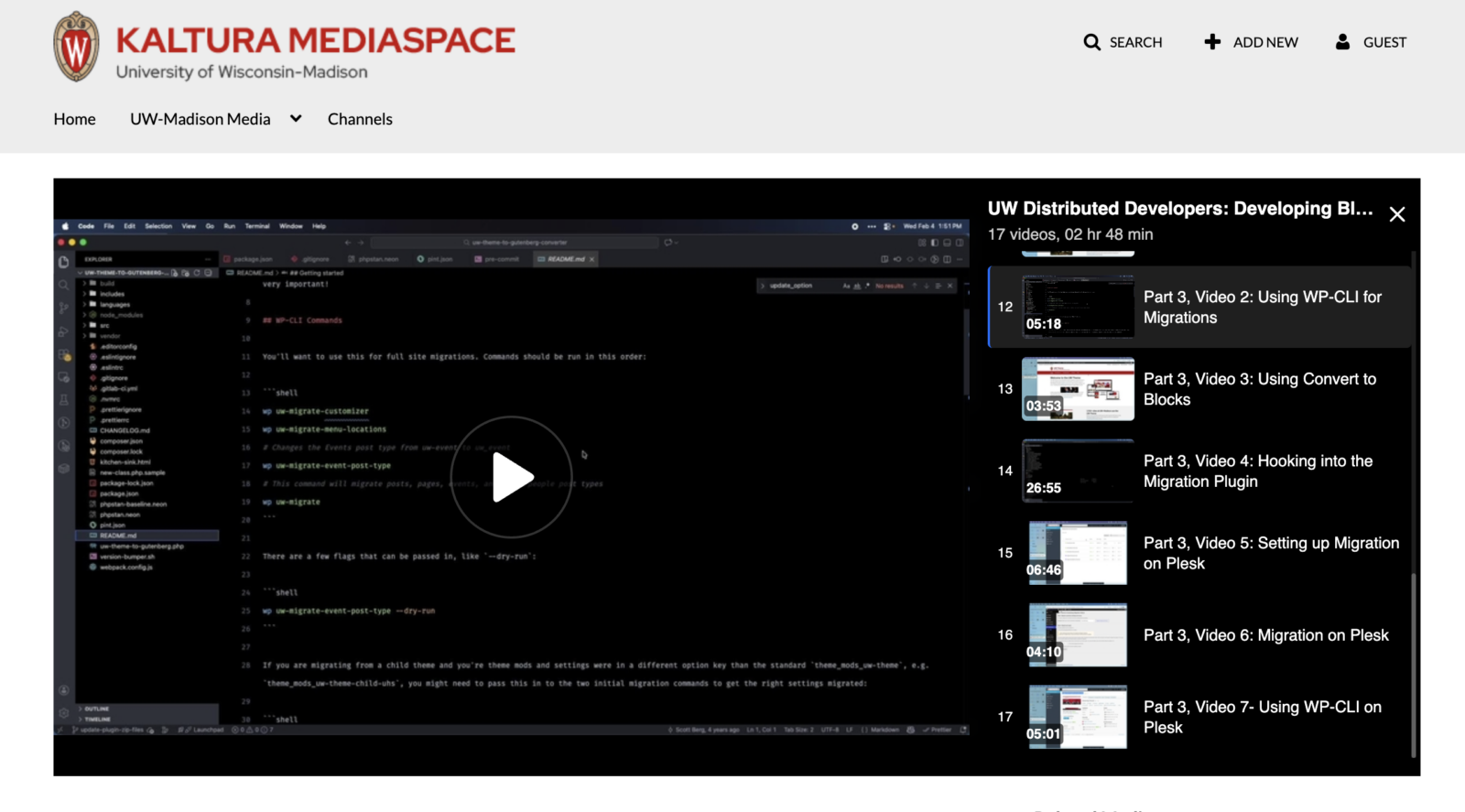
See our Kaltura playlist of screencast tutorials. The screencasts in Part 3 are dedicated to UW Theme Classic migrations.
Contact us
Email Nate Finch and Nick Weaver in the Office of Strategic Communication at uw-theme-2.0-migrations@g-groups.wisc.edu with questions related to migrating UW Theme Classic sites to UW Theme 2.0.