Using the Site Actions dashboard
Last updated:
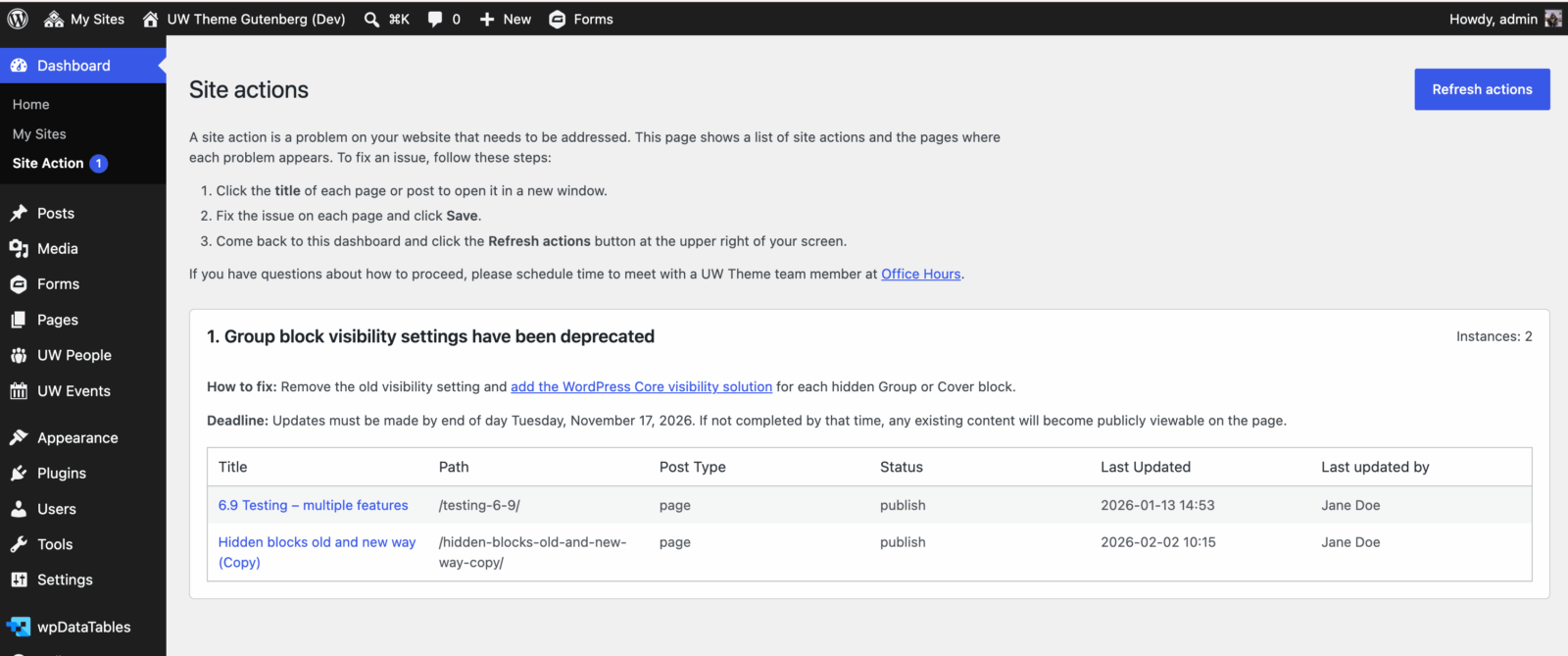
The Site Actions dashboard notifies site editors and administrators when they need to make a change to their UW Theme 2.0 site. For example, an action may appear when a feature is being retired, a setting has changed, or existing content needs to be updated.
Review and complete actions by any listed deadline to help ensure that your site continues to work as expected.
Find the Site Actions dashboard
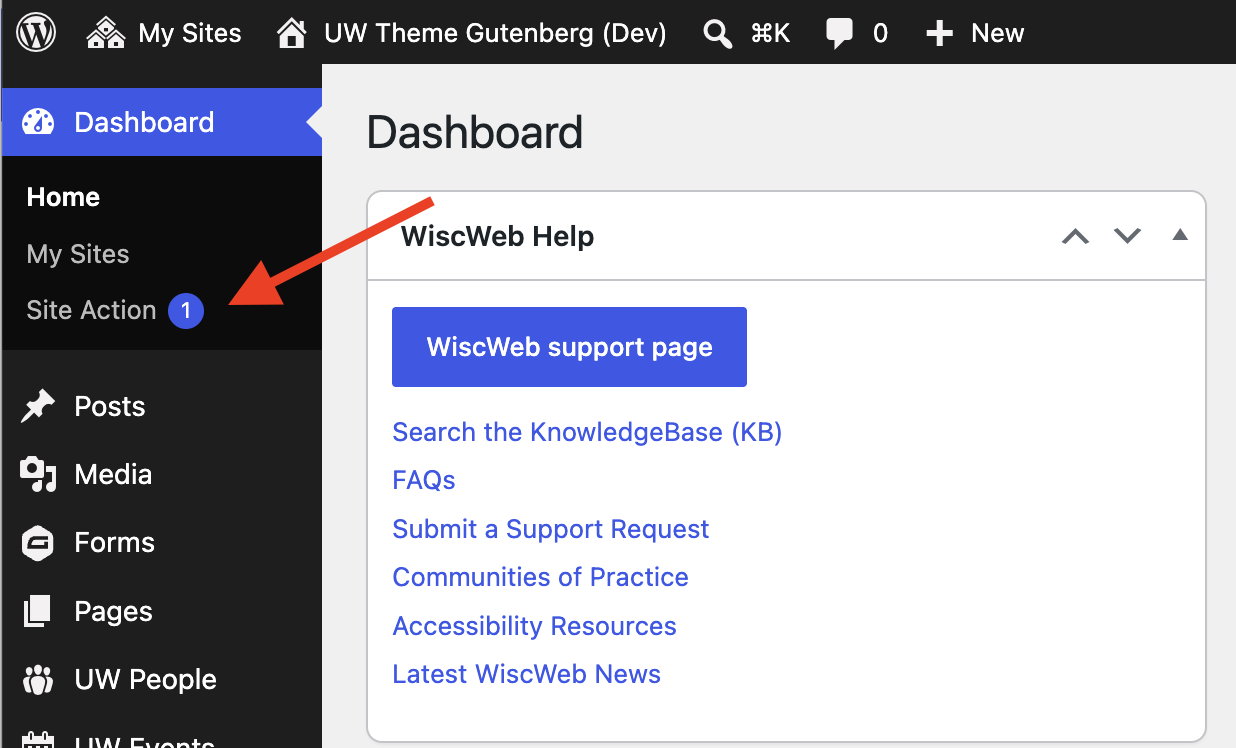
When you’re logged into WordPress:
- Open Dashboard in the left admin menu.
- Select Site Action(s).
When an action is required, the dashboard provides:
- An explanation of what needs to change
- Instructions for completing the action
- A list of affected pages or posts
- A deadline completing the action
If your site does not have any actions to complete, the dashboard displays:
There are no issues on your site. You’re all set!
Review an action
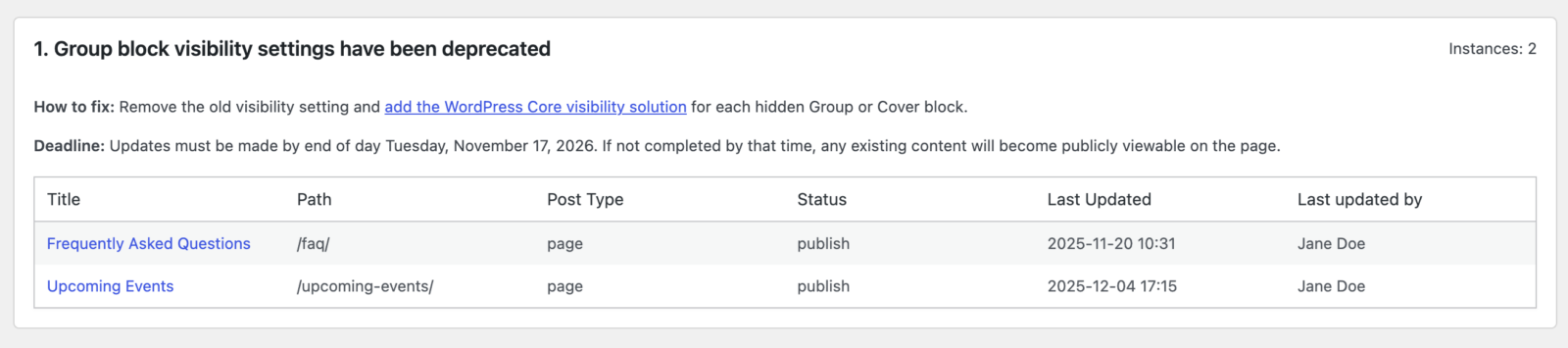
Read the action’s description and instructions before updating your content. Some actions may affect how content appears or behaves after a theme or WordPress update.
When a deadline is listed in the description, complete the action before that date.
Complete an action
Follow these general steps for each action:
- Open a page listed in the action table. The page opens in a new browser tab.
- Make the change described in the action instructions.
- Save or update the page.
- Return to the Site Actions dashboard.
- Click Refresh actions in the top right.
- Repeat these steps for any remaining pages.
After you update a page and refresh the dashboard, that page should no longer appear in the action table. The action disappears after all affected pages have been updated.
If a completed page remains listed
Confirm that you saved the page, then refresh the dashboard again. If the page is still listed, review the action instructions to make sure all required changes were completed.
Multiple actions
Your site may have more than one action at a time. Review all listed deadlines before beginning. Address actions with the greatest urgency or earliest deadline first.
When all actions are complete, the dashboard displays:
There are no issues on your site. You’re all set!
Get more help
WiscWeb sites
If your UW Theme 2.0 site is hosted in the WiscWeb WordPress Service, contact their support team for help.
Non-WiscWeb sites
If you manage or develop a custom
UW Theme 2.0 site outside of WiscWeb, email the UW Theme team.
Weekly Office Hours
Get one-on-one help with design, accessibility, and WordPress in weekly office hours.
Not sure who to contact? Email the UW Theme Team or find additional resources.