Hide blocks and page content
Last updated:
You can hide content using WordPress’s built-in hide block feature with some customizations. In the UW Theme, this option is intentionally limited to the Group and Cover blocks to ensure hidden content behaves predictably and is easy to manage.
About hiding blocks
You may want to keep content in the editor without showing it on the published page. For example, when working on draft content, layouts, or hiding seasonal content.
Hidden blocks:
- Are not visible in the block editor until unhidden
- Do not appear on the published page
- Are not read by screen readers
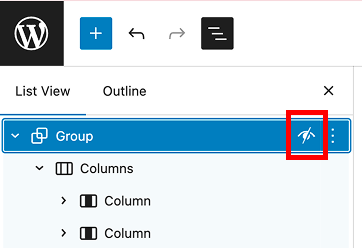
- Display a slashed eye icon in List View
How to hide blocks
UW Theme 2.0 uses WordPress’s built-in hide block feature, but is limited to the Group and Cover blocks. When you hide a Group or Cover block, all content inside it is hidden as well.
To hide multiple items, group them together first and hide the Group.
Steps to hide blocks
- In List View, select the Group or Cover block.
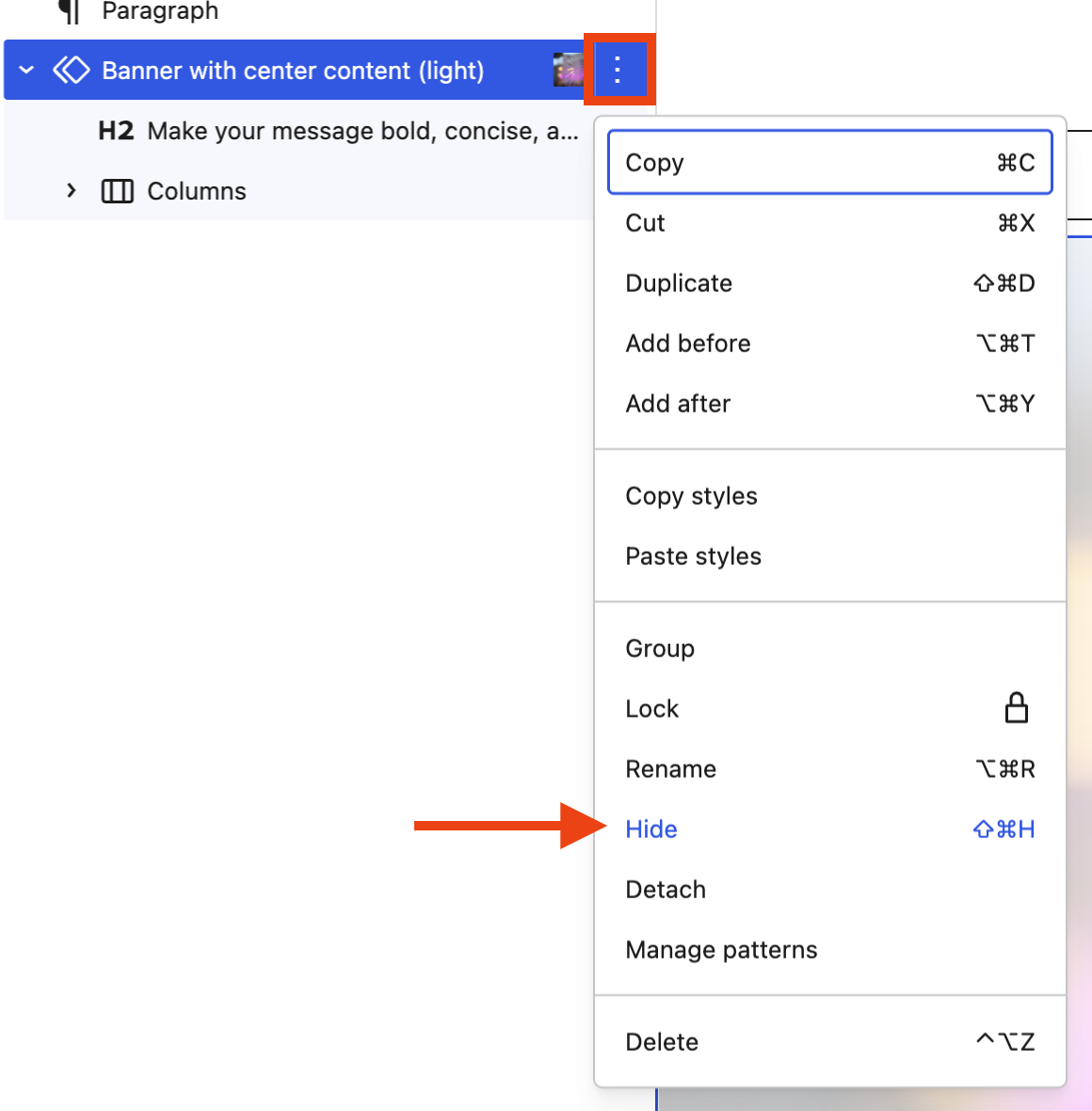
- Open the More options menu (three-dots) and select Hide.
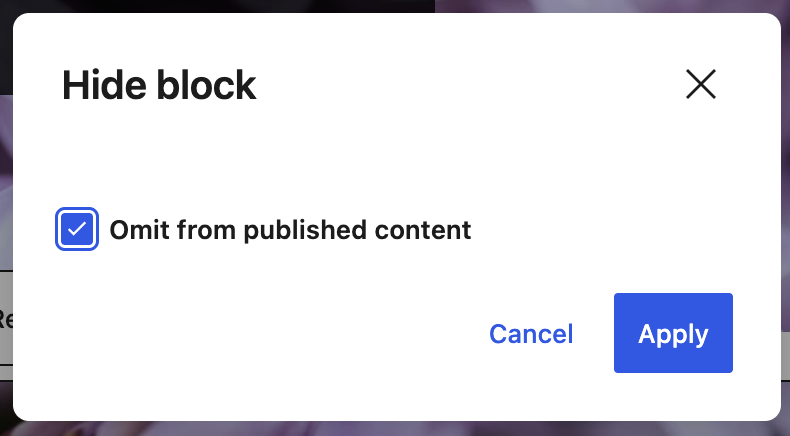
- Check the box next to Omit from published content and click Apply.
- In List View, the block will have a slashed eye icon next to it, indicating it’s hidden.
Hide a carousel slide
If you are using the default slide design that comes with the UW Hero Carousel block, the slide already uses a Cover block.
To hide a slide, follow the same steps above:
- Open List View.
- Select the Cover block for the slide you want to hide.
- Open the More options menu and select Hide.
WordPress 7.0 notice
Starting with the release of WordPress 7.0, it’s possible to hide blocks by device type (mobile, desktop, or tablet). This is not available in UW Theme 2.0 yet due to accessibility concerns. The UW Theme team is continuing to evaluate the feature as it matures in future releases.
There is also a known issue where content from hidden blocks may appear in page excerpts. Until this is fixed in WordPress Core, you can manually add a page excerpt as a workaround to prevent the hidden content from appearing.
Get more help
WiscWeb sites
If your UW Theme 2.0 site is hosted in the WiscWeb WordPress Service, contact their support team for help.
Non-WiscWeb sites
If you manage or develop a custom
UW Theme 2.0 site outside of WiscWeb, email the UW Theme team.
Weekly Office Hours
Get one-on-one help with design, accessibility, and WordPress in weekly office hours.
Not sure who to contact? Email the UW Theme Team or find additional resources.