Managing content width
Last updated:
This guide explains how content width works in UW Theme and WordPress, when to use each width option, and how to choose widths that support readability and accessibility.
Why width matters
Standard text reads best at a narrower width — shorter line lengths are easier to scan and reduce cognitive load. But photos, side-by-side card layouts, and sections with colored backgrounds often look better at a wider or full-screen width.
In the UW Theme and WordPress, you don’t have to choose one width for the whole page. You can change width block by block, which lets your layout respond to what the content actually needs.
Width options
Every block theme has a default content width, meaning that the theme determines how wide your text and images appear on the page. You can adjust the block width to one of three defined sizes:
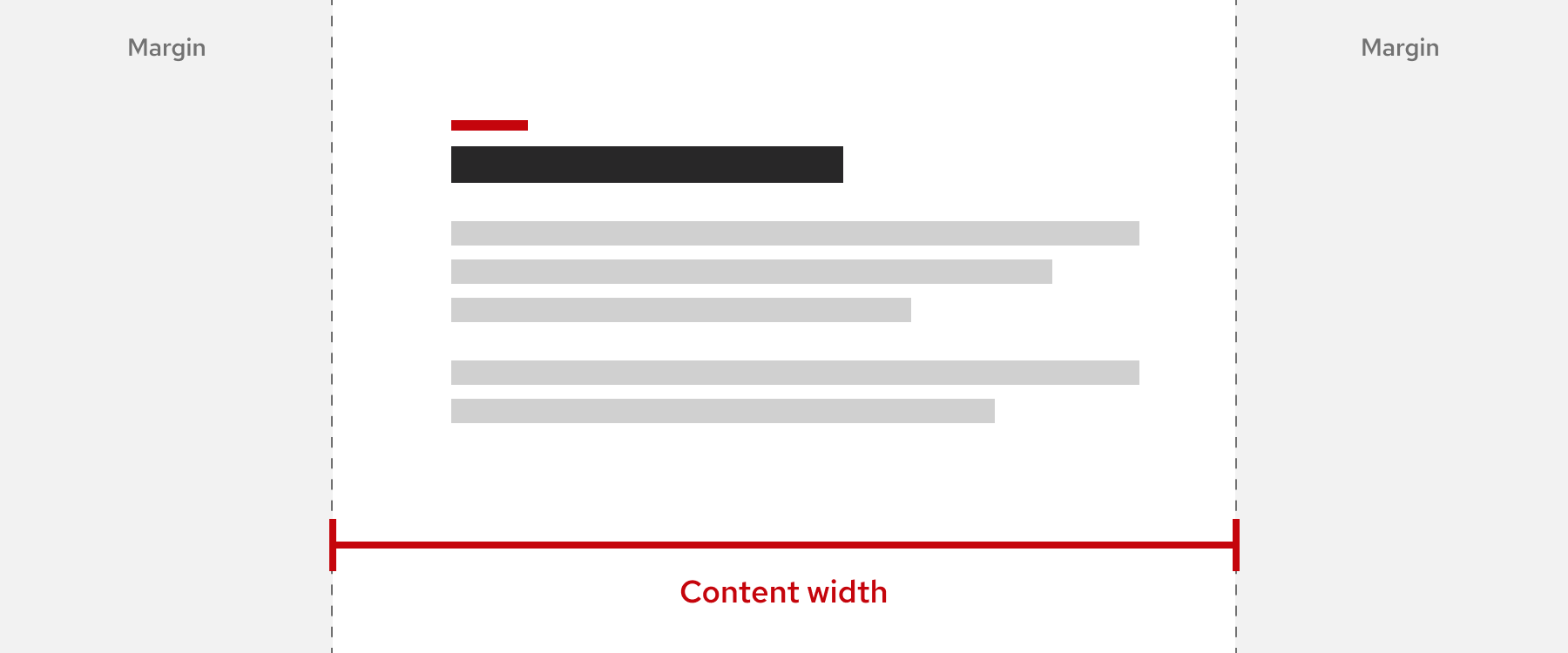
Content (or “None”)
Default content width. Best for text, lists, and most body content. Keeps line lengths readable.
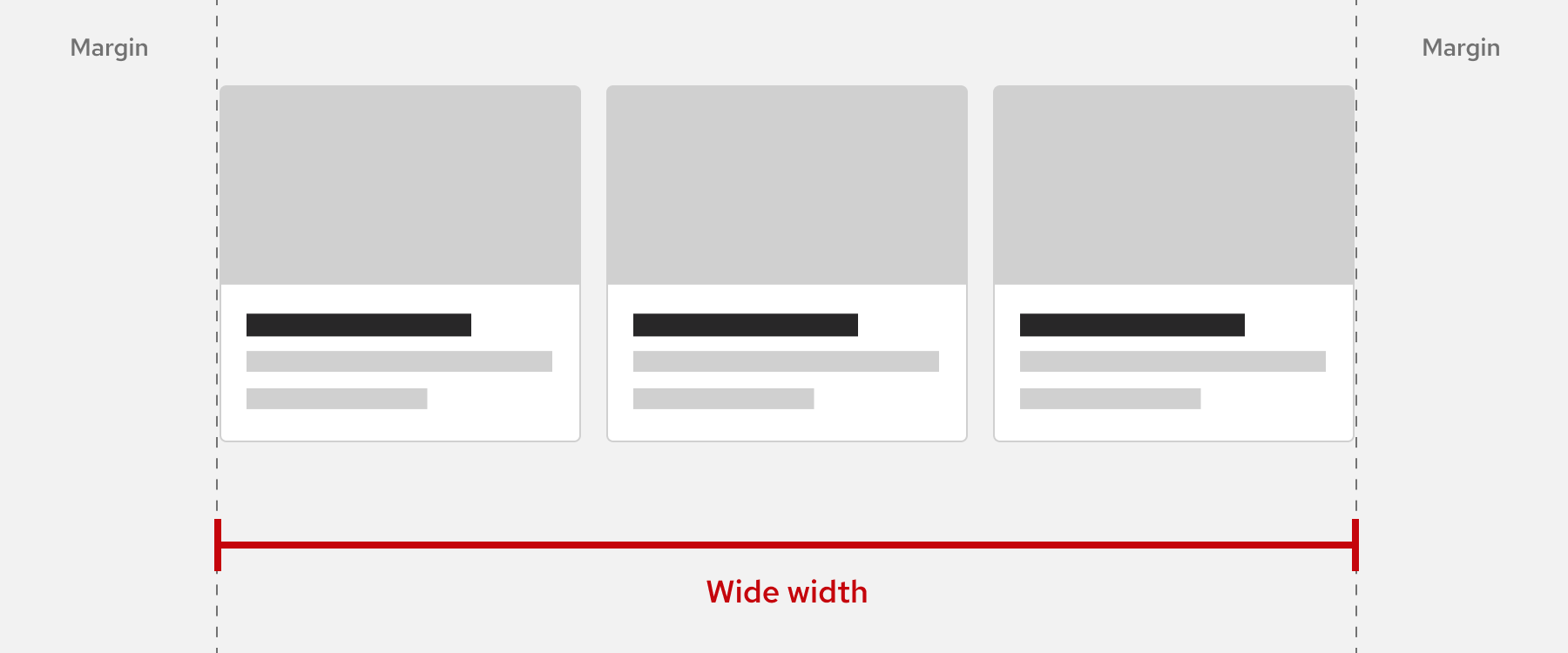
Wide width
Expands the block wider than the default, but not full width. Good for images and multi-column content.
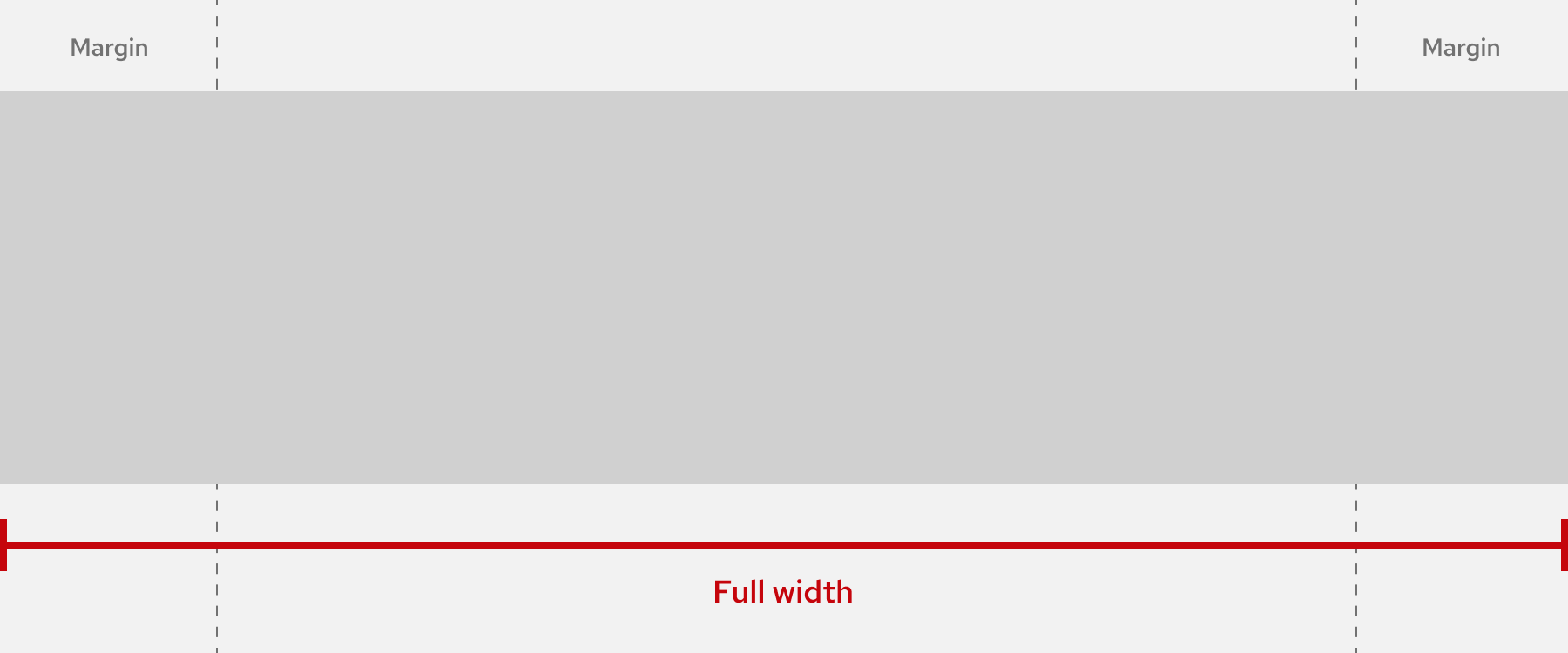
Full width
Stretches the block edge to edge. Best for hero sections, Cover blocks, and full-bleed colored sections.
Change the width of a block
These options can be found under the Align option in the block toolbar when you select certain blocks (like an Image block, Columns block, or Media & Text):
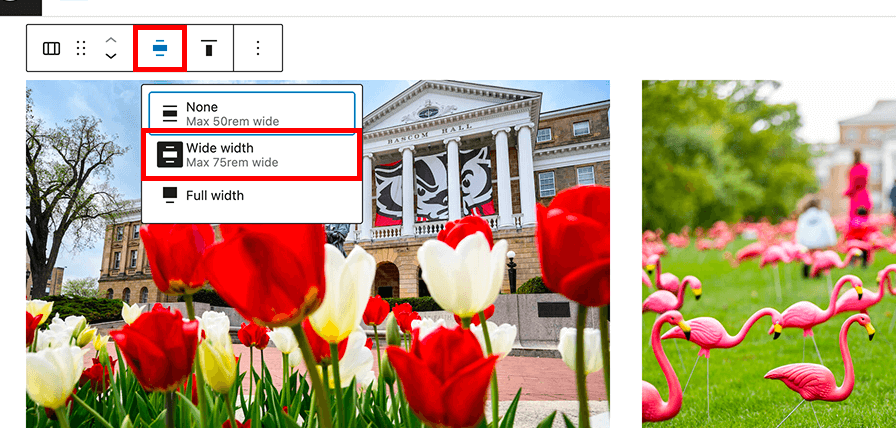
Change the width of blocks inside other blocks
If you cannot change the width of a block, it may be inside a container block that controls the width of the whole section.
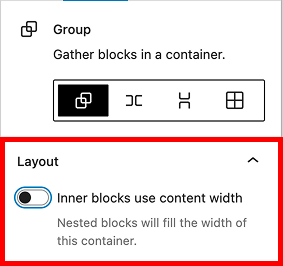
Some container blocks, such as Group, Columns, and Grid, include an Inner blocks use content width setting. To find this setting, select the container block in List View and open the block settings sidebar.
- On: inner blocks use the default content width.
- Off: inner blocks stretch to the full width of the container.
Note: Some blocks may also let you set a custom width value in the block settings. In most cases, we recommend using the theme’s default width settings to keep layouts consistent.
Learn more in the WordPress Layout Settings overview guide.
If a block doesn’t have a width setting
Some blocks like the Paragraph block do not have width settings. You can add them to a container using the Group block, and then set the width of the container. Use the Inner block use content width setting mentioned above to change the width of the inner blocks.
To Group a single block:
- Click on the More options menu (three vertical dots) in the block toolbar or List View
- Click the “Group” option to place it inside of a container.
To Group multiple blocks:
Visit the Converting multiple blocks to a group section of the WordPress Group block guide.
Accessibility considerations
Accessibility guidelines recommend keeping text line lengths at 80 characters or fewer. Shorter lines reduce cognitive load and are easier to read for people with dyslexia, low vision, or attention-related conditions.
The UW Theme’s default content width (“None”) is designed to meet this guideline for text blocks like paragraphs, headings, and lists. Avoid stretching long chunks of body text to wide or full width — save those settings for images, full-bleed sections, and multi-column layouts.
For examples of best practices, visit the Patterns Gallery to learn how the UW Theme uses content width for different types of layouts.