Icon block
Last updated:
Use icons to reinforce key ideas and make content easier to scan. The WordPress Icon block includes 200+ icons from the official UW Icon Library, along with ready-made patterns.
WiscWeb sites: The Icon block already available to use. No additional setup is required.
Other WordPress sites: Download and install the UW Icons plugin from the UW Theme 2.0 download form to use the UW Brand icons with the Icon block.
On this page
Designing with UW Icons
Learn how to choose the right icons for your content and use color, size, and spacing to improve designs. Browse example layouts for inspiration.
Block Preview
You can change the icon color, add a background, and pick a preset size. Icons are Badger Red by default.
Colors
Default
Red icon, no background
Black
Black icon, no background
Gray circle
Black icon, blue gray background
Red circle
White icon, red background
Size presets
View full layouts in the Icon design examples section of the Designing with UW Icons guide.
Small
Medium
Large
Extra Large
How to use
In this section
Get the block
WiscWeb sites
The Icon block is already activated and ready to use on sites hosted in the WiscWeb WordPress Service. No additional setup is required.
Other WordPress sites
For sites outside of the WiscWeb WordPress Service, you must download and activate the UW Icons plugin from the UW Theme 2.0 download page. Refer to the plugin’s README for installation instructions.
Note: Once activated, the Icon block and the UW Brand Icons pattern category will become available. The plugin works with any theme, but is designed for UW Theme 2.0.
Insert the block
Using the Block Inserter (+ icon), search for Icon, or type /icon in a new paragraph. Then choose a pattern or single icon.
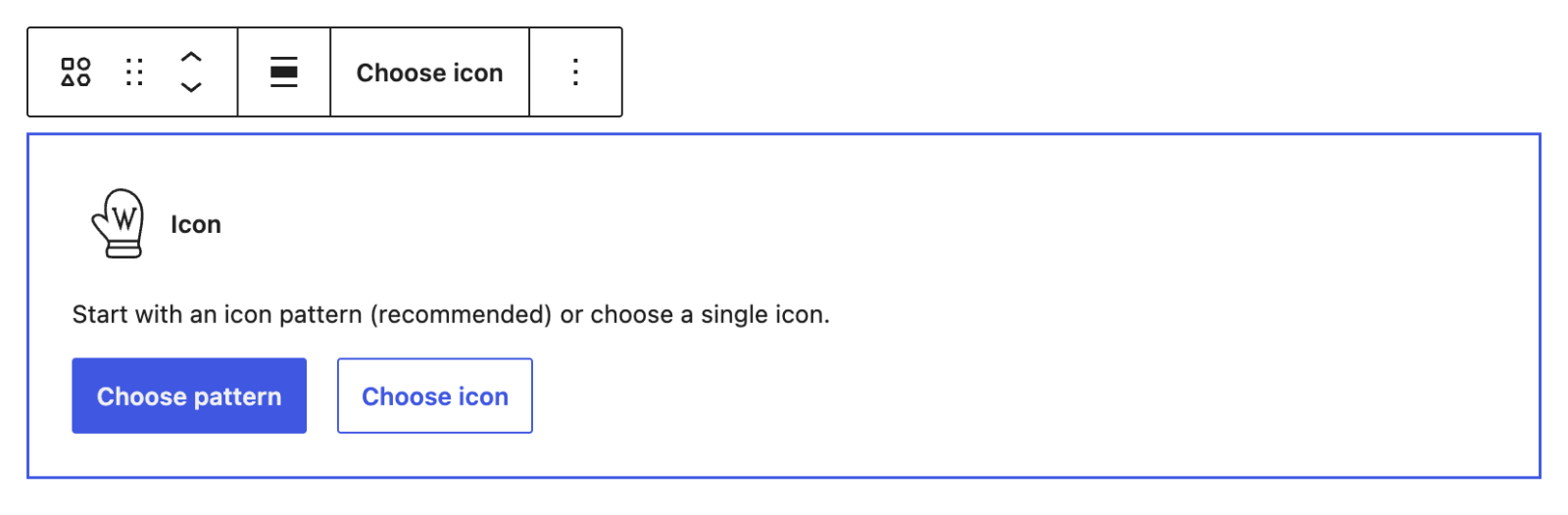
Where to find block settings
Icon block options are available in two places: the block toolbar and the block settings sidebar.
Block toolbar
The toolbar appears above the block when you select it. Use it to align or replace the icon.
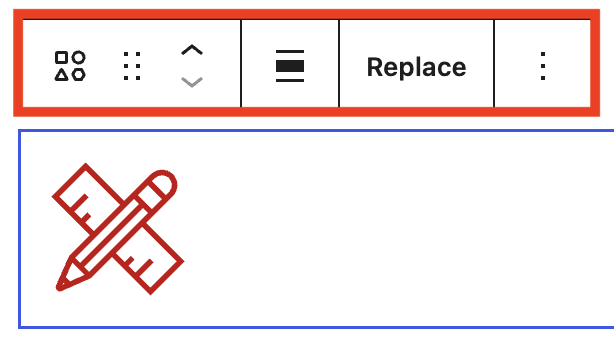
Note: For details about each option, refer to the Icon block toolbar documentation on WordPress.org. Some features described there, including flip and rotate, aren’t available in
UW Theme 2.0.
Block settings sidebar
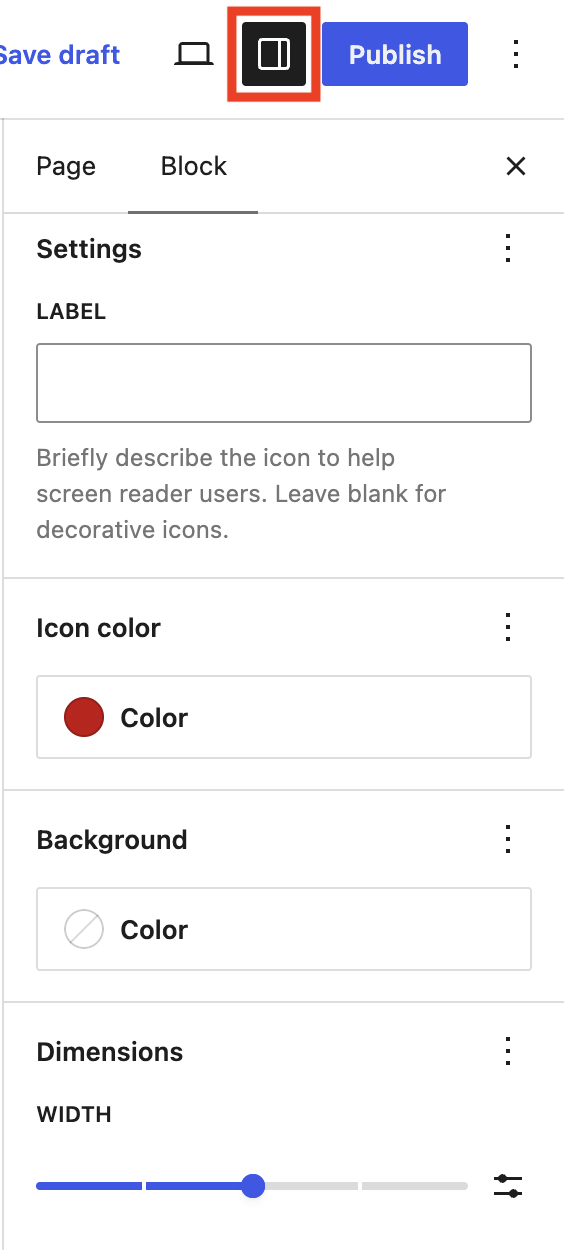
The sidebar on the right holds most options, including the accessibility label, color, background, width, and spacing.
If you don’t see the block settings sidebar, click on the Settings icon in the top right of the editor next to the Save/Publish button.
Start with patterns
Patterns are ready-made layouts that combine icons with headings, text, and links. They already follow UW design and accessibility guidelines, making them the easiest way to get started.
- Select Choose pattern.
- Browse the UW Brand Icons patterns and select one.
- Replace the placeholder headings, text, links, and icons with your content.
You can also find these patterns any time:
- Open the Block Inserter (+ icon)
- Select Patterns.
- Select UW Brand Icons.
Choose or change an icon
Choose icon after inserting the block to open the icon library and select an icon. To change it later, select the block and choose Replace in the block toolbar.
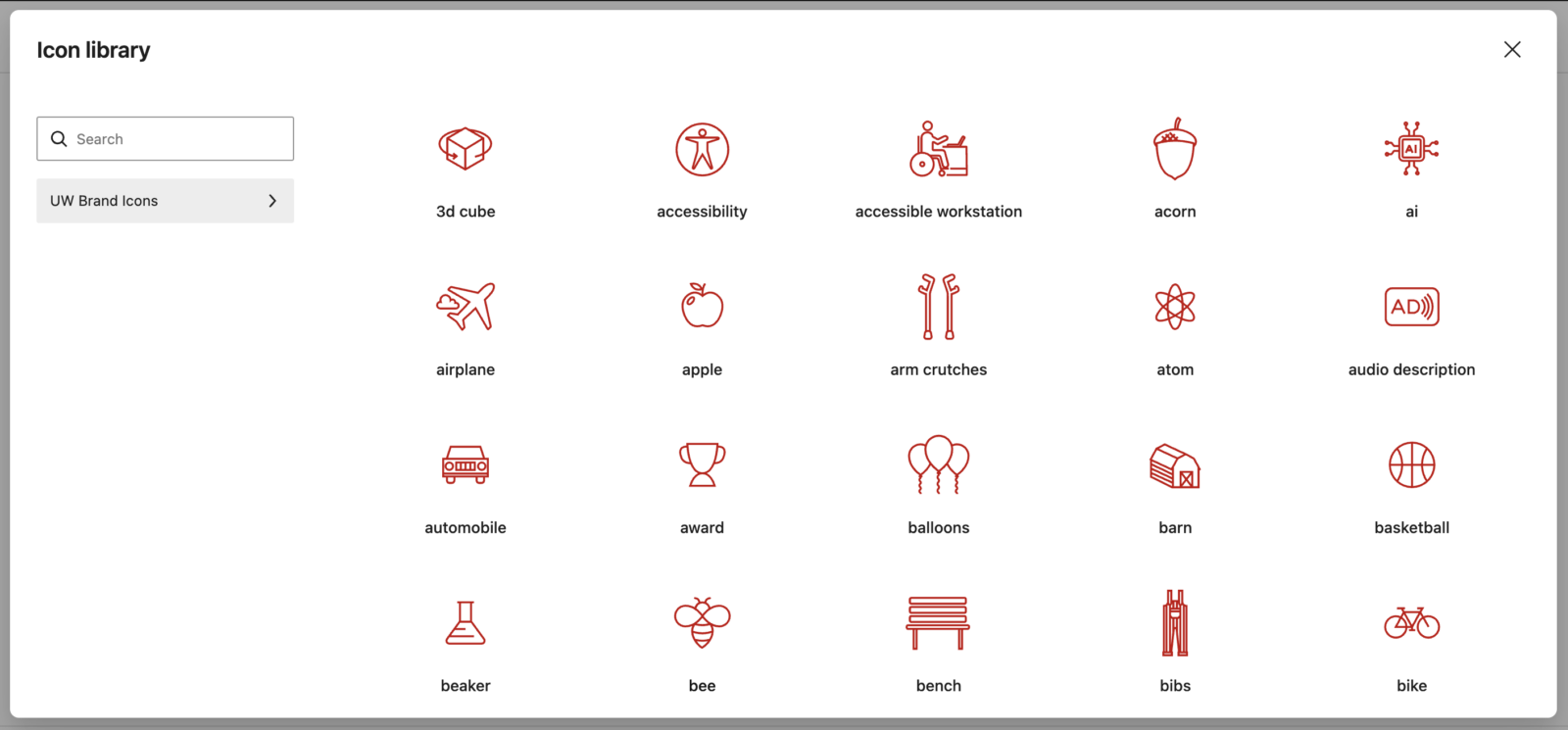
Note: Choose an icon that clearly supports the accompanying text next. For guidance, refer to the Tone and meaning section in the Designing with UW Icons guide.
Accessible label text
The Label field in the block settings provides an accessible name for the icon and works similar to alt text. Screen readers announce the label, but it doesn’t appear visually on the page.
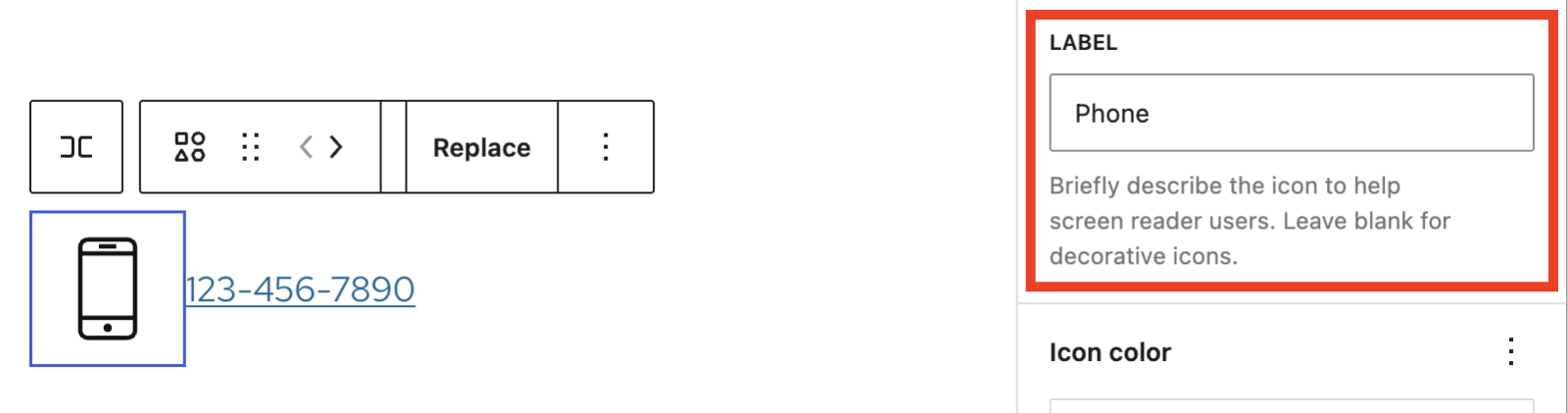
In most cases, UW Icons should be decorative. They should be used to reinforce nearby text, such as a heading or statistic. When an icon supports the visible text, leave the Label field blank. Don’t use icons as a substitute for text.

Don’t do this
The icons replace the words “Email.” A label would help communicate it’s meaning to screen reader users, but visible text works for everyone.


Do this instead
Visible text labels makes each line clear. The icon is decorative, so the Label field is left blank.

Write a good label
- Describe what the icon means, not what it looks like. Use “Sustainability,” not “Green leaf illustration.”
- Keep it to a few words. If the icon shows a fuller idea, like a step in a process, a short phrase is fine.
- Don’t start a label with “icon of” or “image of.” Name only what the icon means.
For examples, see the W3C’s Informative images tutorial and UW–Madison’s Alternative text guide.
Change color and background
In the block settings, choose an Icon color and an optional Background color. The color palette is limited to UW Theme colors, helping keep your icons on brand.
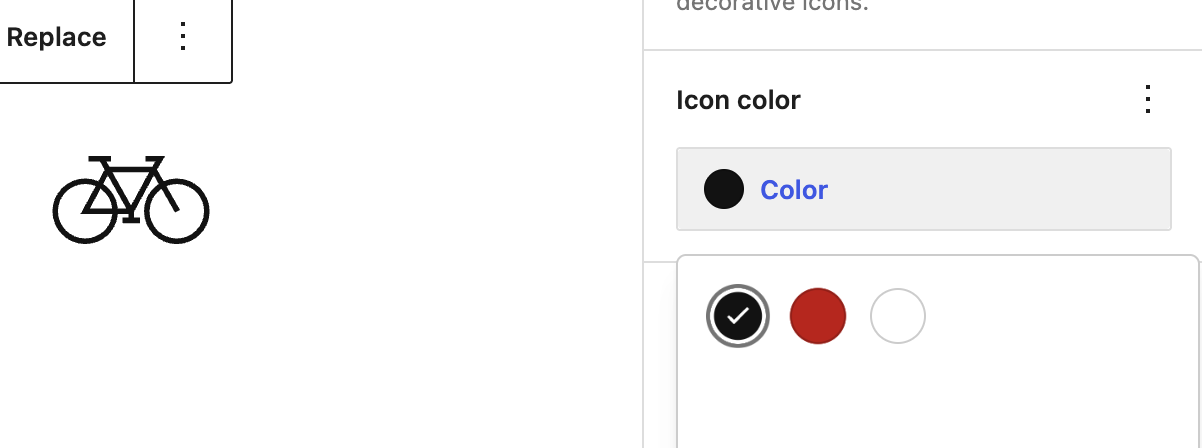
To display an icon in a circle, start with a pattern from the UW Brand Icons category. The background and shape are already configured, so you only need to change the icon and text. Learn how to start with patterns.
Note: Not every color combination has enough contrast. Review the Color and contrast guidance in Designing with UW Icons before choosing icons colors.
Set the size
Under Dimensions in the block settings, adjust icon size by dragging the Width slider. It snaps to preset sizes to help icons stay consistent across your site. Use the same preset for every icon in a section for design consistency.
If the presets don’t meet your needs, select Set custom size (the button with the sliders icon) and type a width in pixels. Select the button again to return to the preset sizes.
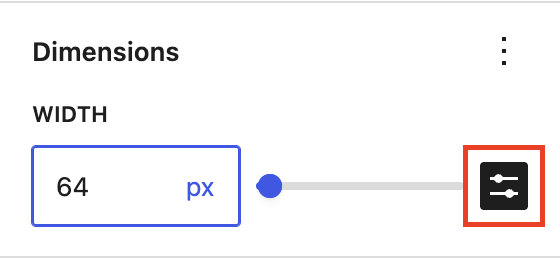
Note: For help choosing a size, refer to the Size and proportion section in Designing with UW Icons.
Adjust alignment and spacing
Alignment determines where the icon appears on the page. Spacing determines how much room appears around it.
Alignment
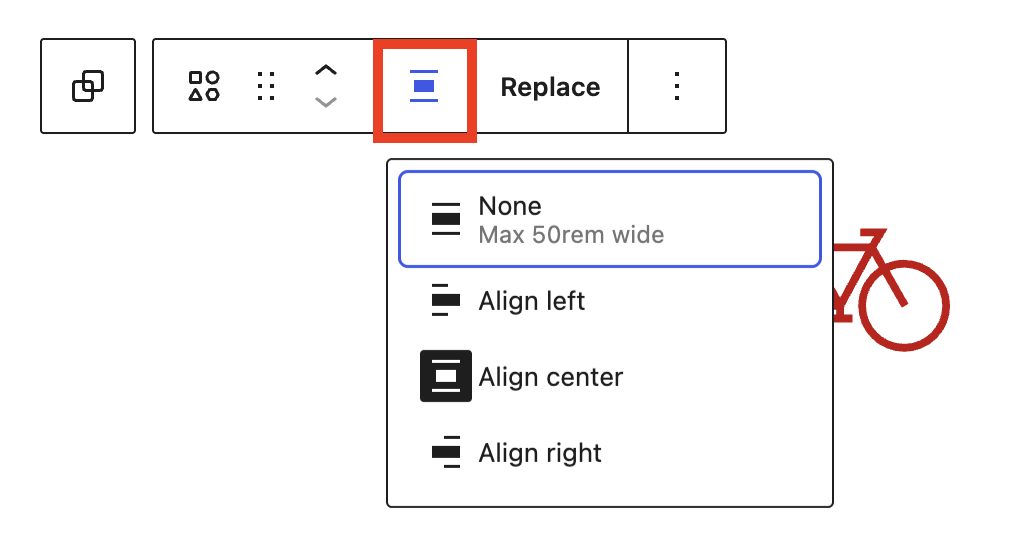
In the block toolbar, select Align, then choose Align left, Align center, or Align right. Choose None to remove alignment.
Spacing
Patterns include balanced spacing between icons and text, making them the easiest place to start.
Note: For help adjusting the space between an icon and its text, refer to the Spacing section in Designing with UW Icons.
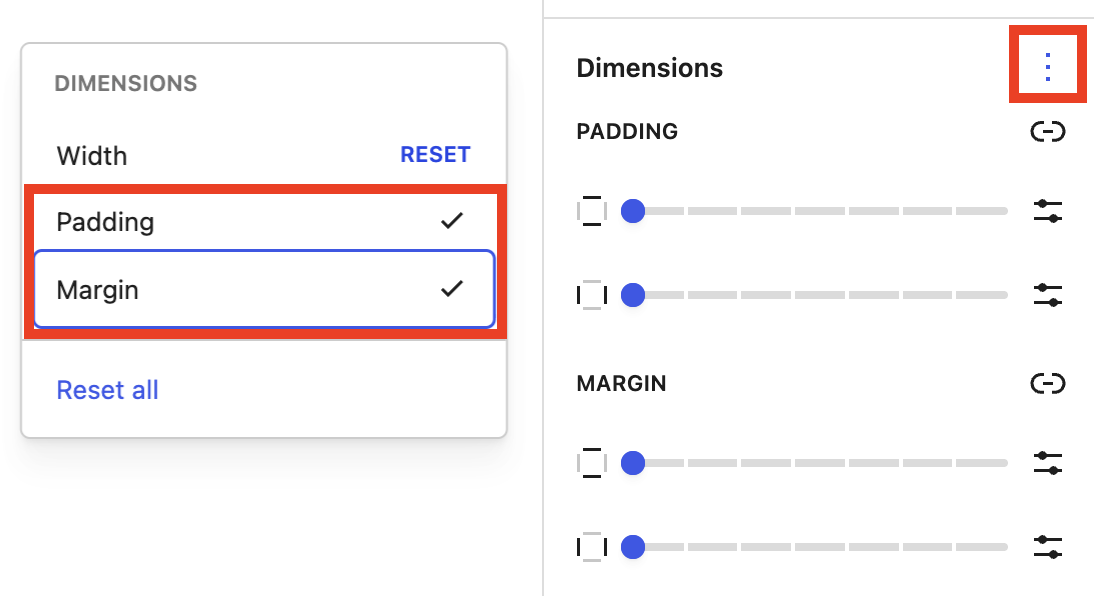
The Icon block also has its own Padding and Margin settings. Padding adds space inside the icon’s box, which makes the icon smaller. Margin adds space outside it. These settings are hidden by default, but you can enable them:
- In the block settings, open Styles.
- Next to Dimensions, select Dimensions options (the three-dot menu).
- Select Padding, Margin, or both. Their sliders then appear under Dimensions.
Recommendations
In this section

When to use
- Help people scan a set of related items, like services, steps, or values.
- Add a visual where photos aren’t available or would overwhelm the content.
- Reinforce the meaning of a short heading or statistic.

When to consider something else
- The icon would replace text. Icons should support text, not replace it. Write it out.
- You need something people can click. Icons can’t be links. Use Buttons or UW Single Link instead.
- A real photo communicates the story more effectively. Use the Image or Media & Text block instead.
- Icons would appear in every section. Save icons for one or two sections so they stand out. If everything stands out, nothing stands out.

Usability and accessibility
- Always pair an icon with visible text. An icon may not be clear without context.
- Leave the Label field empty for decorative icons. Add a short label only when the icon adds additional meaning not already provided in the text.
- Icons need a contrast ratio of at least 3:1 with it’s background. Some color combinations, such as white on gray, don’t pass.
- Use the WordPress View feature to preview your page at smaller device sizes and check icon size and alignment.

Design guidance
Designing with UW Icons guide explains how UW icons differ from interface icons, how to choose icons that fit your message, and how to use color, size, and spacing well. It also includes example layouts you can follow.
Get more help
WiscWeb sites
If your UW Theme 2.0 site is hosted in the WiscWeb WordPress Service, contact their support team for help.
Non-WiscWeb sites
If you manage or develop a custom
UW Theme 2.0 site outside of WiscWeb, email the UW Theme team.
Weekly Office Hours
Get one-on-one help with design, accessibility, and WordPress in weekly office hours.
Not sure who to contact? Email the UW Theme Team or find additional resources.