Building a page
Last updated:
Use this guide to understand how page building works in the UW Theme. The easiest way to build a page is to think in sections first, then use patterns to build each section. Most pages are made of sections such as an introduction, resource links, or contact information.
If your new to UW Theme 2.0, watch the Intro to UW Theme 2.0 video series for an overview.
Learn the block editor
If you’re new to the WordPress block editor, visit the Intro to the Block Editor guide to learn about the various features and settings available to you when building pages.
Create a new page
Pages and posts in UW Theme are created from the WordPress admin screen and edited in the block editor. For step-by-step instructions, see the WordPress documentation on how to create pages.
Note: Page Templates are not available in UW Theme
UW Theme does not include Site Editor features, so WordPress Page Templates are not available if mentioned in official WordPress documentation.
Think in content sections
Pages in UW Theme work best when built as a series of content sections. A section is one chunk of content with a clear purpose, such as an intro, a text-and-image area, a list of links, or a contact section.
When building a new page, use this mental model:
- Decide what content sections your page needs.
- Add a pattern for each section when possible.
- Edit the blocks inside each section.
Use patterns to create sections
The recommended way to build sections of content is by using patterns in the UW Theme. Patterns help you start faster with ready-made, on-brand layouts and accessible defaults, so you do not have to build section layouts from scratch.
Watch this short walkthrough to learn how to create content sections on your page:
Tip: Rename sections to stay organized
As pages grow, renaming major sections and important blocks in List View makes it easier to scan, reorder, and manage your content. Visit Block Fundamentals to learn more about renaming and managing blocks.
Starter full-page patterns
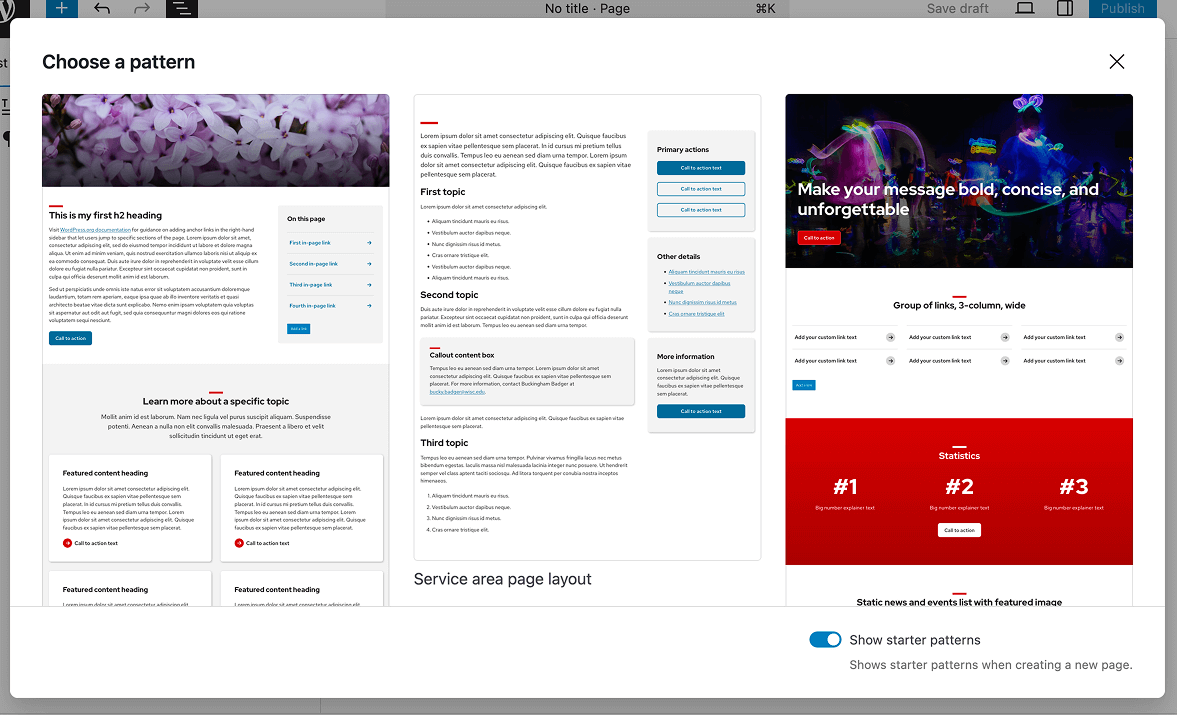
When you create a new page, WordPress may show a starter pattern modal with full-page layouts. Using a starter pattern is optional — you can edit it, remove sections, or start with a blank page.
- Use the toggle in the lower right corner of the starter pattern modal, or
- Open your editor preferences and manage this setting under the General tab
You can disable or re-enable the starter pattern modal in two ways:
Learn how to manage editor preferences.
Edit your page title
Pages and posts include a Title block by default, and it serves as the Heading 1 (H1) for your page.
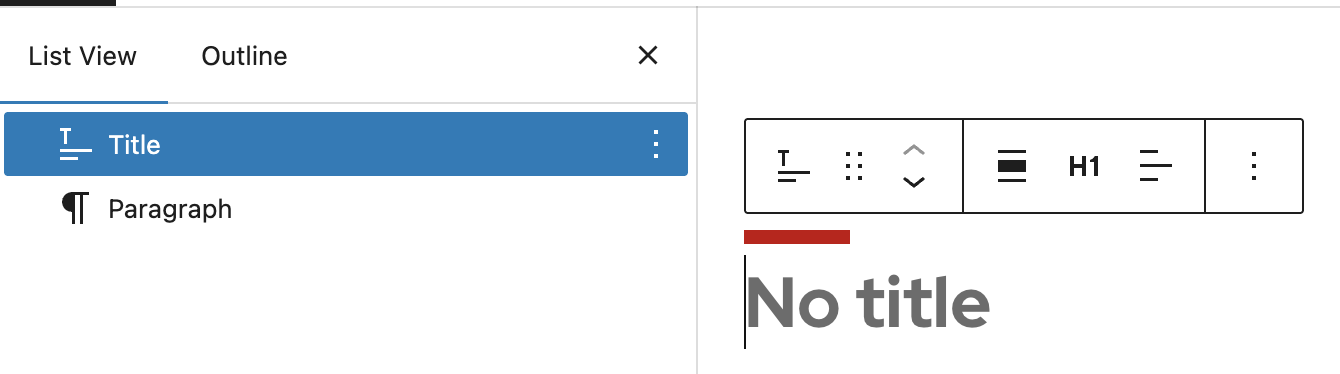
Keep these general guidelines in mind when working with page titles and headings:
- Every page should have only one main heading (H1).
- The default Title block on new pages and posts is your H1.
- Do not add a Heading block set to H1 elsewhere on the page.
For more details, visit Working with page titles and headings.
Work with blocks
As you build your page, use blocks to add and edit content inside each section. Blocks are the individual parts that make up a section, such as headings, text, images, links, and buttons.
Visit the Block Fundamentals guide for more details about how to use blocks. Common tasks you may do often include:
- Add blocks to your page and reorder them
- Group blocks together to create custom sections or patterns
- Rename blocks to organize content as pages grow more complex
- Hide blocks from published view while you work on draft layouts or seasonal content
- Adjust content width when something looks too narrow or too wide
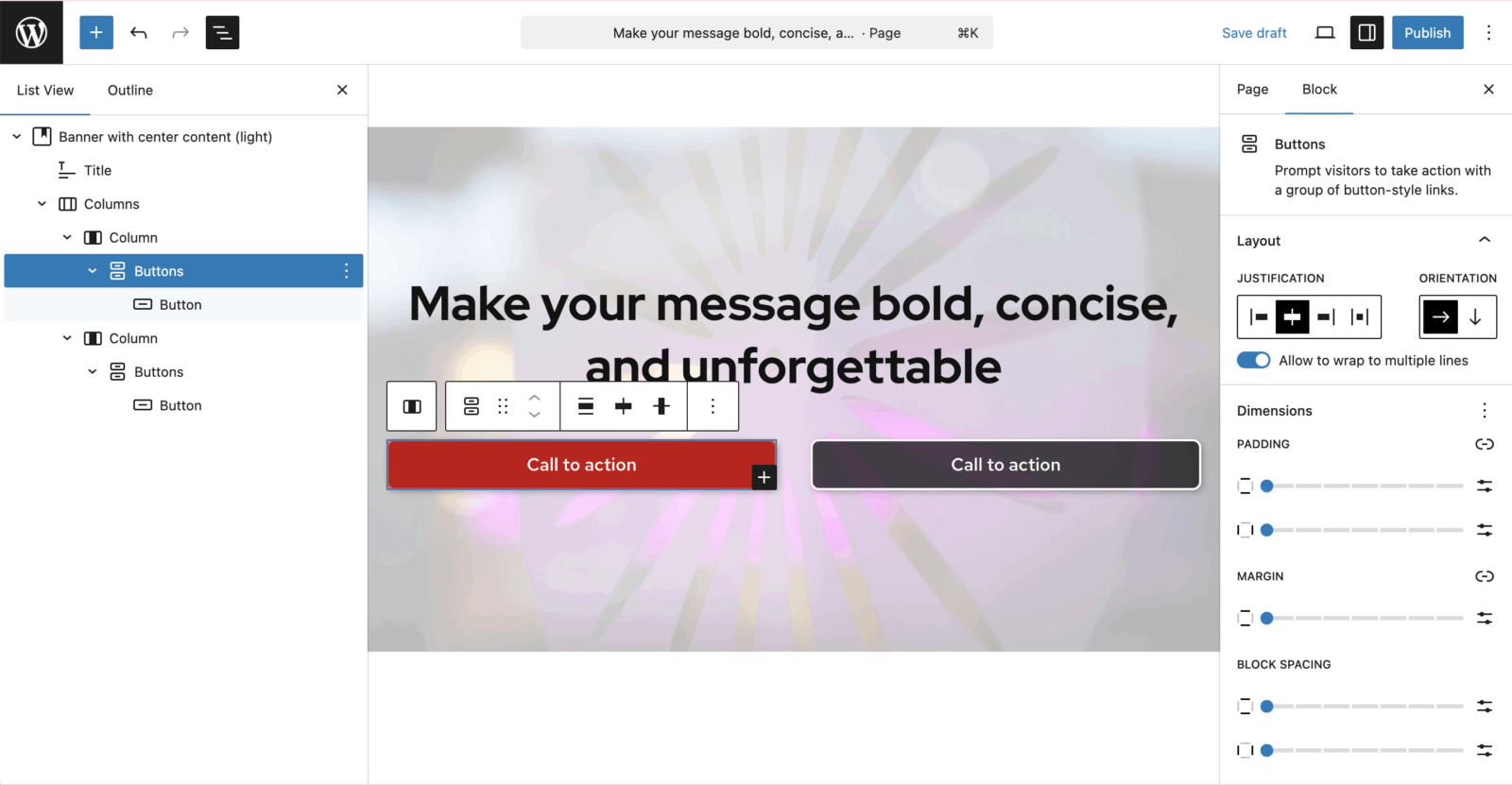
Tip: Use List View to see blocks on your page
Open List View from the top toolbar to see and manage blocks more easily, especially on long or complex pages.
Preview and publish
Before publishing, it’s a good idea to preview your page and review its page-level settings.
Preview your page
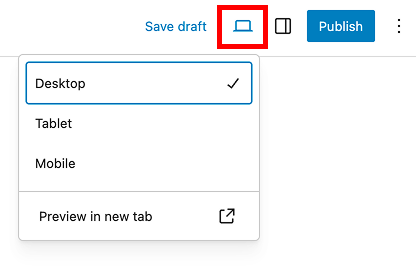
Use the View option in the top toolbar (laptop icon) to preview how your page will appear on desktop, tablet, and mobile screen sizes, or open the preview in a new browser tab window. Previewing helps you catch layout issues, long line lengths, or missing headings before the page is visible to visitors.
Learn how to use the preview feature.
Publish your page
When you’re ready, select Publish in the top toolbar. After a page is published, this button changes to Save for saving future changes.
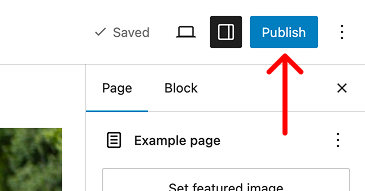
Publishing-related options live in the page/post Settings sidebar, including:
- Publish status and date
- Page excerpt
- Page URL (slug)
- Author and revisions
- SEO and social preview settings
For a full overview of page and post settings, see the WordPress documentation on the Page/Post Settings sidebar.
Get more help
WiscWeb sites
If your UW Theme 2.0 site is hosted in the WiscWeb WordPress Service, contact their support team for help.
Non-WiscWeb sites
If you manage or develop a custom
UW Theme 2.0 site outside of WiscWeb, email the UW Theme team.
Weekly Office Hours
Get one-on-one help with design, accessibility, and WordPress in weekly office hours.
Not sure who to contact? Email the UW Theme Team or find additional resources.
Optimize for SEO and social media
Improve SEO and search
Write a 1-2 sentence description of your page or post in the Excerpt field. Excerpts can improve archive pages, internal search results, and listing pages by giving people a short, useful summary instead of a messy first sentence pulled from body copy.
Learn how to integrate your site with Google services for additional enhancements.
Social media preview
SEO and social media preview settings allow you to customize how a page or post appears when it’s shared on social media like LinkedIn, Facebook, and Instagram.
These settings are available under the SEO and Social Media section of the Page/Post Settings Sidebar and allow you to:
Visit the Customize social previews guide to learn more about these settings and best practices.