Grid block
Last updated:
Use the WordPress Grid block when you need repeating cards or content arranged across multiple rows. Grid arranges blocks in a repeating layout with even spacing, making it a good choice for equal height cards.
Grid also lets you resize individual items so they take up more or less space. This lets you create a grid where some items are wider or taller than others while keeping the overall layout structured.
Not sure if Grid is the right block? See Choosing a layout block.
Block settings
In the block settings sidebar, below are the most commonly used options for Grid in UW Theme.
For a full overview of all available settings like content width, color, and type, visit the Grid block documentation on WordPress.org
Transform to Group, Row, or Stack
Grid block is a variation of the Group block. You can transform it into a Row, Stack or Group block at any time without losing content in the block setting sidebar. This means you can start with one layout block and switch if your needs change. Learn how to transform the Grid block (WordPress.org).
Auto mode vs Manual mode
The Grid block offers two layout modes: Auto and Manual.
- Use Auto mode so Grid columns adapt to the screen size automatically based on a minimum column width you set.
- Manual mode locks the column count regardless of screen size, which can cause cramped or broken layouts on smaller screens.
- Avoid Manual mode unless you have a specific reason to lock the column count. Always check the mobile preview using the WordPress View feature before publishing if you use it.
Minimum column width
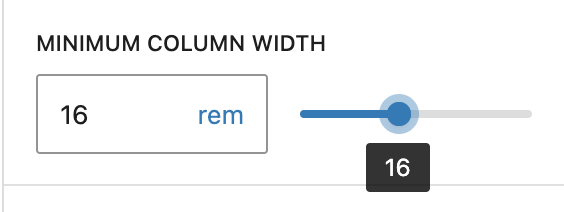
In Auto mode, the Minimum column width setting controls how narrow a column is allowed to get before it wraps to the next row.
Set this value in rems, not pixels. Using rems ensures the layout scales correctly when users increase their browser font size — a key accessibility consideration.
Best practices
Following these recommendations when setting up a grid layout:
- Use Auto mode and set a minimum column width in rems, not pixels. Manual mode locks content so it does not resize on mobile.
- Stick to four columns or less in a single row to keep content readable. More columns means less space for each grid item.
- Use Wide Width alignment in the block toolbar when displaying more than two columns. Visit the Managing content width guide for more information.
- Always test your layouts on mobile before publishing using the WordPress View feature.
Don’t do this
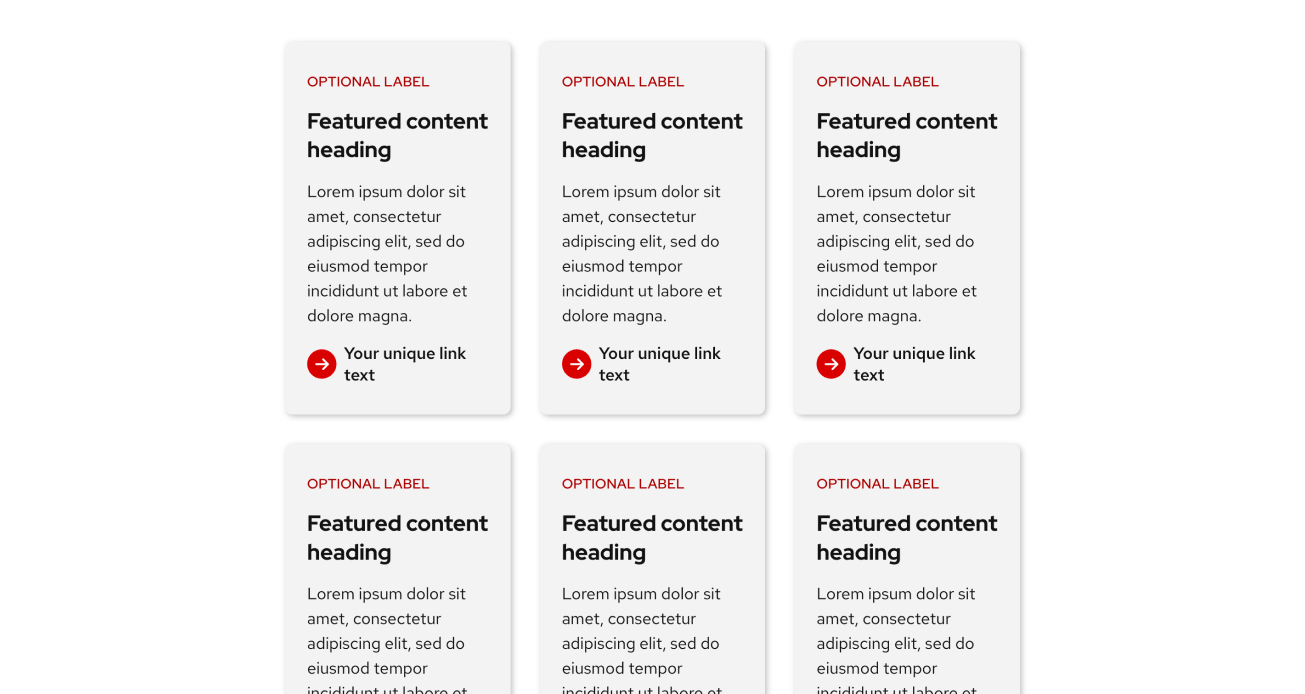
Three columns at the default (“None”) content width. Content becomes squished and difficult to create.
Do this
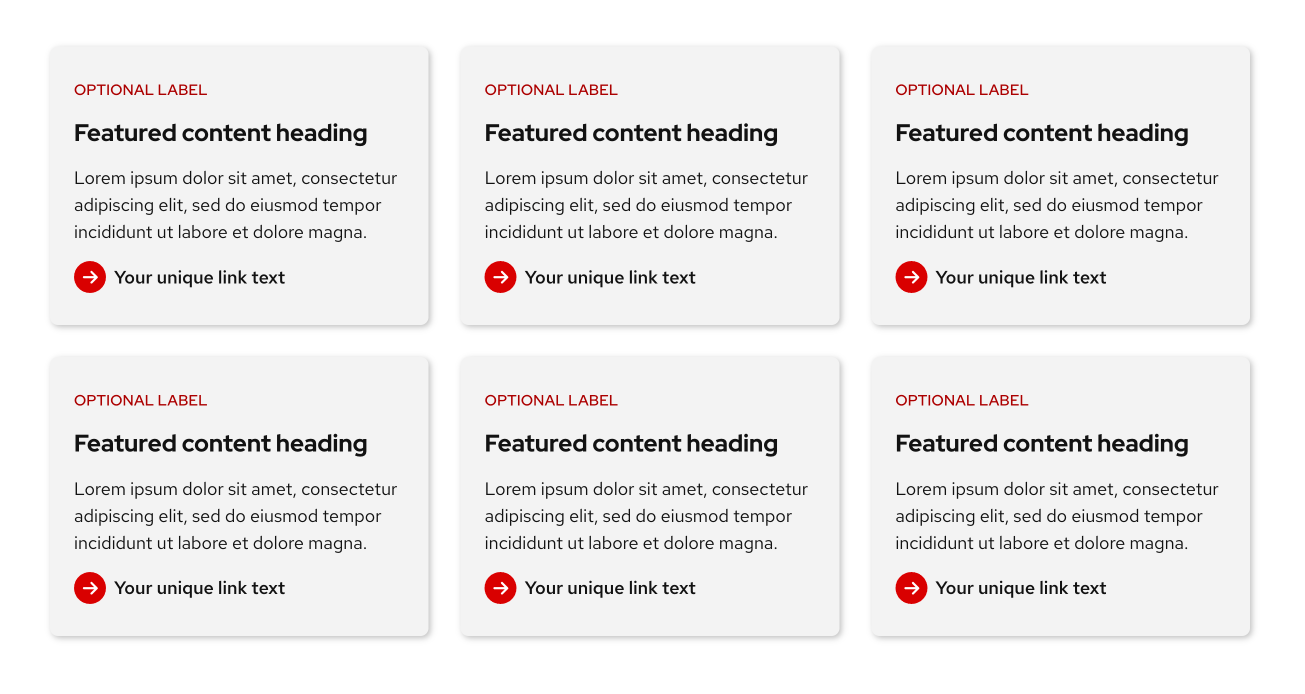
Three columns at the theme’s wide width. Content has enough room to be read clearly.
What’s happening behind the scenes
The Grid block uses the Grid CSS layout property which is why content inside behaves differently than the flexbox based Row and Stack blocks. If you are interested in learning more about Grid in CSS, visit MDN: CSS Grid layout
Examples
Basic Grid
This example shows equal height cards built with the Grid block. Each card is created using the Stack block. Refer to patterns in the UW Theme for more card examples.

Featured content heading
Lorem ipsum dolor sit amet, consectetur adipiscing elit, sed do eiusmod.
Featured content heading
Lorem ipsum dolor sit amet, consectetur adipiscing elit, sed do eiusmod tempor incididunt ut labore et dolore magna. Lorem ipsum dolor sit amet, consectetur adipiscing.
Featured content heading
Lorem ipsum dolor sit amet, consectetur adipiscing elit, sed do eiusmod tempor incididunt ut labore et dolore magna.
Featured content heading
Lorem ipsum dolor sit amet, consectetur adipiscing elit, sed do eiusmod tempor incididunt ut labore et dolore magna.
Featured content heading
Lorem ipsum dolor sit amet, consectetur adipiscing elit, sed do eiusmod tempor incididunt ut labore et dolore magna.
Featured content heading
Lorem ipsum dolor sit amet, consectetur adipiscing elit, sed do eiusmod tempor incididunt ut labore et dolore magna. Lorem ipsum dolor sit amet, consectetur adipiscing.
Advanced Grid
This example uses a 4-column Grid with Cover blocks to create each card with a background image. A few cards are resized to span 2 rows to create a more dynamic masonry-style layout. To ensure text stays readable and accessible, an overlay is applied to each Cover block at 80% opacity.
Watch the WordPress Using the Grid block tutorial to learn how to achieve this layout.
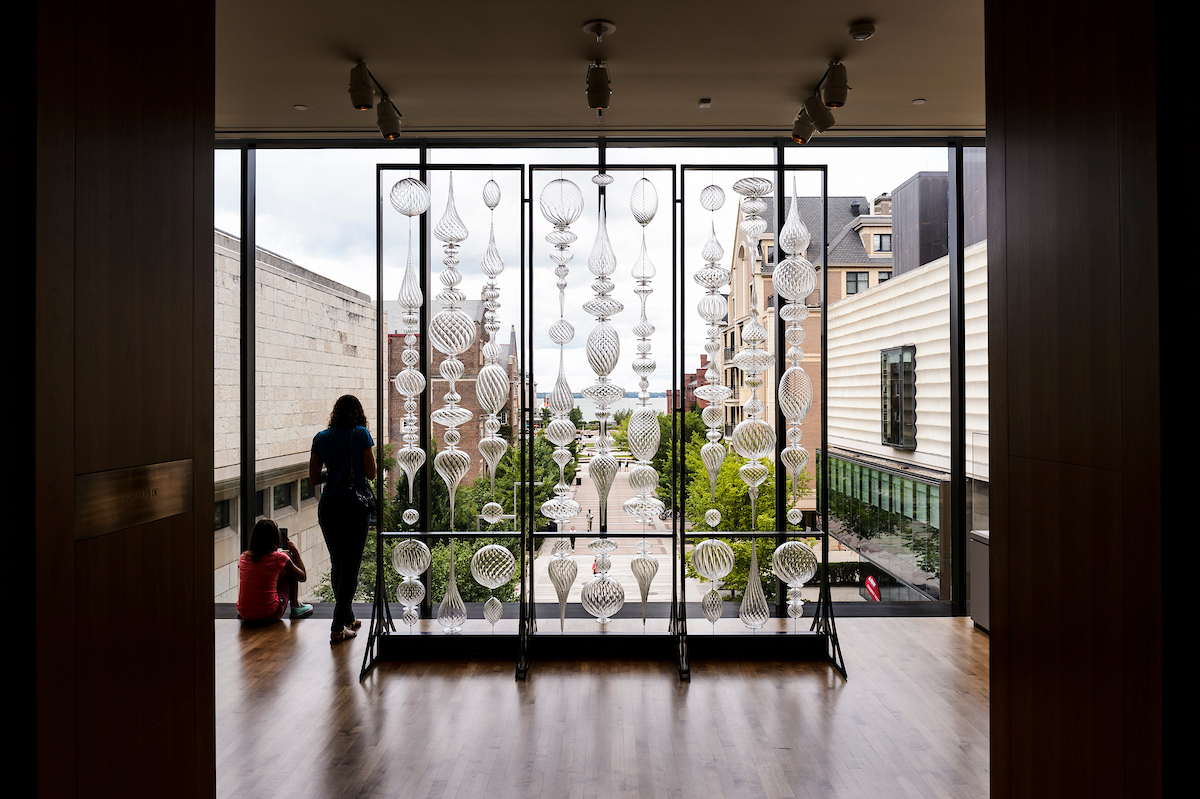
“Optic Twist Screen #2” blown glass sculpture
Chazen Museum, 2018
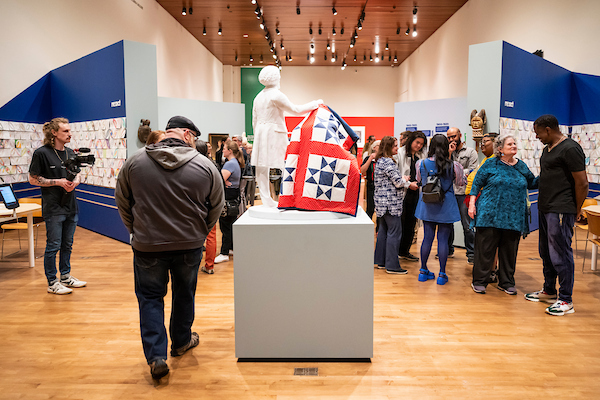
“Remancipation” exhibit
Chazen Museum, 2023

“The Mendota Wall” glass sculpture
Kohl Center Foyer, 2025

Neon glass scultpure
Neon Light Show, 2018
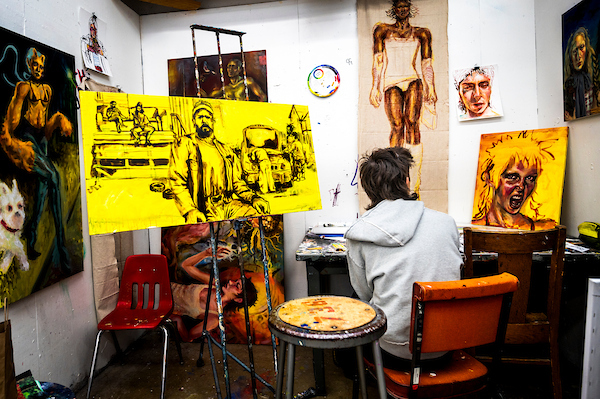
Student advanced painting studio
Annual Open Studio Day, 2024
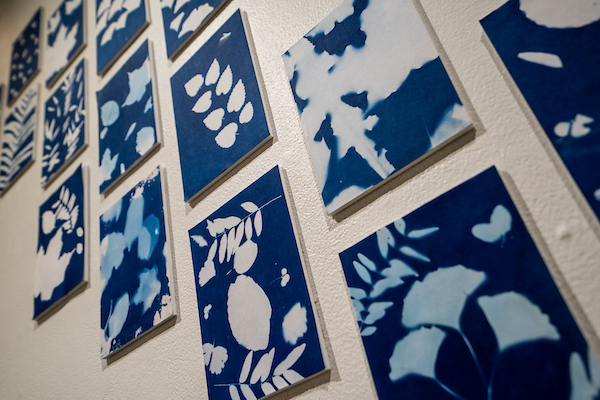
Fall leaves cyanotypes
Art Lofts Gallery, 2025
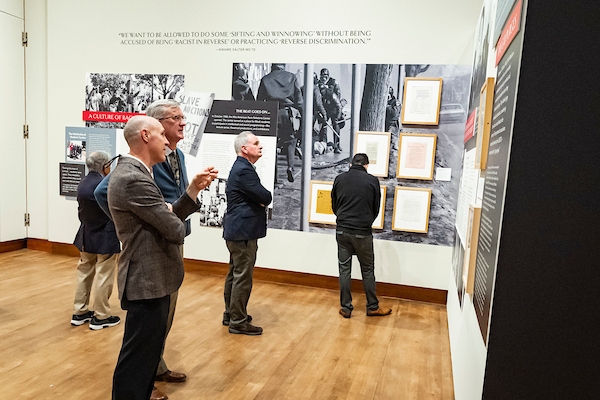
“Sifting and Reckoning” exhibit
Chazen Museum, 2022

Manabu Ikeda pen and ink
Chazen Museum, 2015
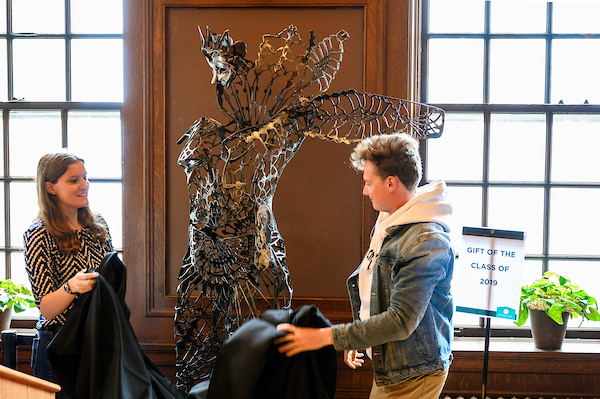
“The Monarch” senior class statue
Memorial Union, 2019
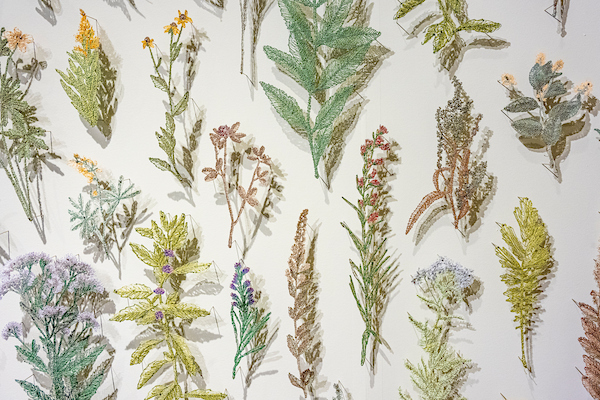
“Suspended Landscapes” fiber arts exhibit
Chazen Museum, 2022