
Working with Page Titles and Headings
Overview
Last updated:
Page titles and headings help people understand what a page is about and how its content is organized. They are also important for people who use assistive technologies, such as screen readers, which rely on headings to identify sections.
Page titles and headings have specific default behaviors that are helpful to understand when building pages in the block editor.
What is a page title
In the UW Theme, headings are created using two blocks:
- Title block: Used for the page/post title and default Heading 1 (H1)
- Heading block: Used for all other headings on the page (H2–H6), and only used for a custom H1 when the Title block is intentionally removed
Pages and posts include a Title block by default. This block represents the name of your page and the page’s Heading 1 (H1). The page title plays an important role in accessibility, navigation, and search results.
Where the page title appears
Your page title may appear in several places, including:
- The browser tab
- The page URL (also called the slug)
- Breadcrumbs and navigation
- The main heading (H1) displayed on the page
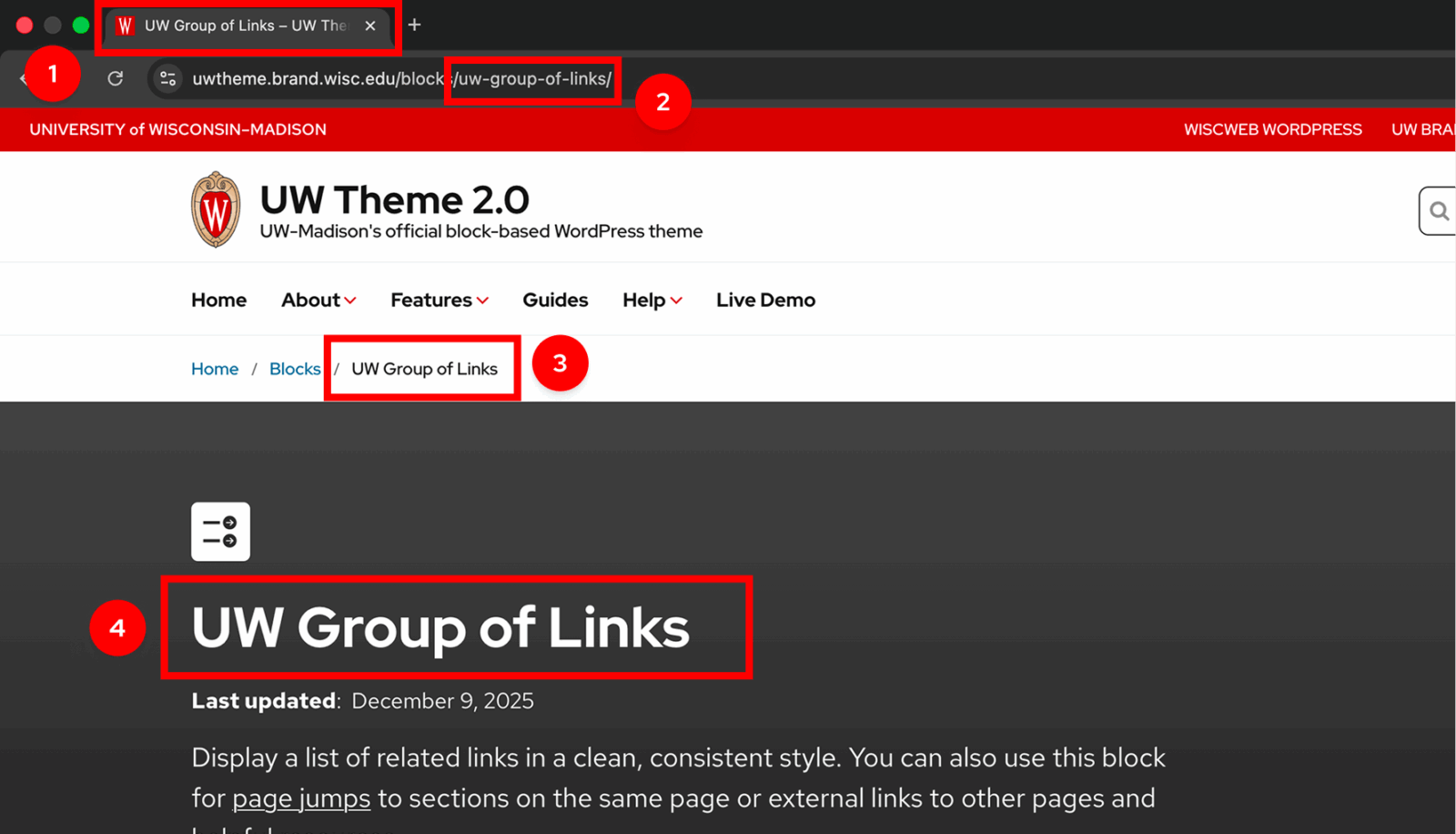
Because the page title is reused in multiple places, it’s normal for it to be clear and descriptive rather than short or conversational.
Note: Titles work differently on homepages
If your site has been migrated to UW Theme 2.0 in WiscWeb, the Title block is removed from the homepage editor by default. On newly created sites, the Title block appears by default and should be removed or changed to an H2 to avoid multiple H1s.
Page title, Heading 1 (H1), and page URL
These three things are related, but they are not the same.
Page title
The page title is the name of your page in WordPress and uses the Title block. By default, the Title block is included on new pages and posts and serves as the H1 of your page.
You can update the page title:
- Directly on the page
- From the page/post setting sidebar (jump to rename instructions)
- From the Quick Edit option in the pages admin screen
Heading 1 (H1)
The H1 is the primary heading for your page. By default, the Title block serves as the H1 when you create a new page or post. Every page should have only one H1.
If the Title block is removed, the page no longer has a visible H1 unless you add a Heading block set to H1. In that case, the page title still exists for navigation and search, but the main heading on the page uses different wording.
Page URL (Slug)
The page URL is based on the page title by default, but it can be changed independently.
This is useful when:
- Your page title is long or descriptive
- You want a shorter or more readable URL
- You’ve changed the title of your page
Use a different page title and H1
In some cases, you may want your page’s H1 to use different wording than the page title. This is uncommon, but sometimes intentional for more advanced groups.
Most pages will keep the Title block as-is. Only make changes when there’s a clear reason for the page title and the on-page heading to behave differently. For example, you may need your main heading to be longer than your page title for marketing purposes.
If you only need to move the page title
If you only need to change where the page title appears, like placing it inside a hero or cover section, you can move the Title block instead of removing it.
If the page title and H1 need different wording
If the page title needs to differ from the main heading, you can remove the Title block and add your own Heading block set to H1. The page should still have one clear H1.
To replace the page title accessibly
- Remove the Title block from the page
- Add a Heading block
- Change the heading level from H2 to H1
Note: Heading blocks start as H2 by default. If you remove the Title block, remember to change your Heading block to H1.
You can still change the page title itself at any time, even if the Title block is removed.
To rename the page title
If you replace the Title block with a Heading block, you may still want to update the page title used for the page name in the browser tab and breadcrumbs.
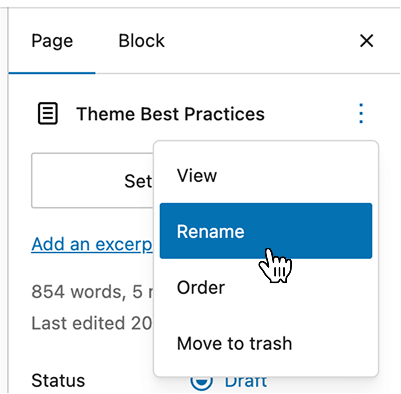
You can rename the page title from the page settings.
- Open the page settings sidebar
- Open the Actions menu (three dots)
- Select Rename
- Update your page title
After renaming the page title, you may also want to review and update the page URL (slug).
To change the page URL (Slug)
Changing or renaming the page title does not automatically update the page URL. To update it, open the Page/Post Settings sidebar and edit the Slug field.
When you change the page URL, visitors using the old page address may see an error because the URL has changed. Set up a redirect so visitors are automatically sent to the new URL.
If your site is hosted on the WiscWeb WordPress Service, you can use the Redirection plugin.
How titles work on homepages
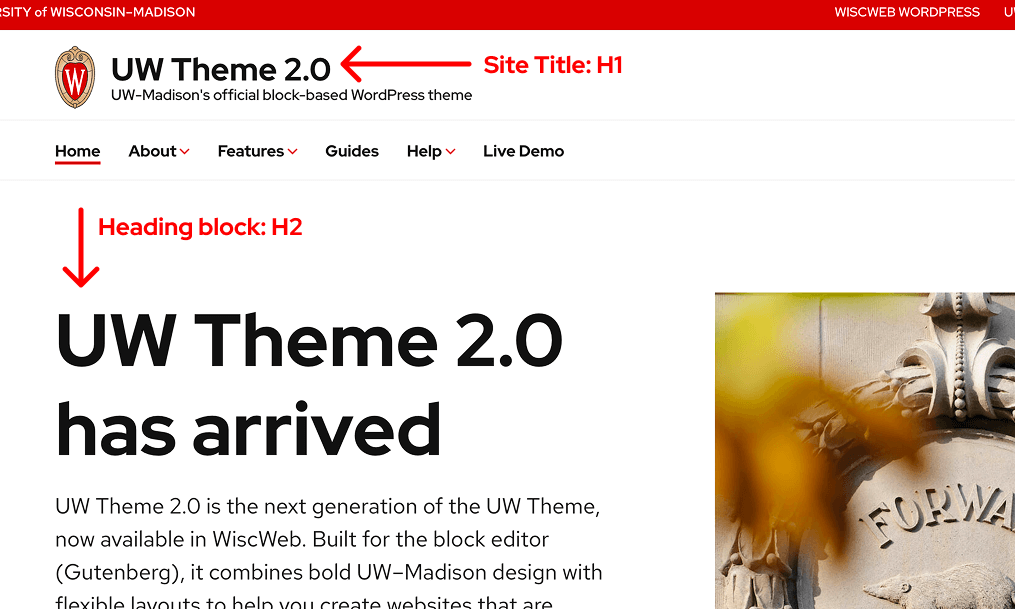
The Title block works differently on the homepage. On the homepage, the Site Title in the header serves as the page’s H1 to ensure there is a single, accessible H1.
On sites that have been migrated to UW Theme 2.0 in WiscWeb, the Title block is removed by default from the homepage editor. On newly created pages, a Title block appears by default.
If a Title block appears on a page that is set as the homepage, you should remove it to avoid having multiple H1s. If needed, you can also change the Title block’s heading level to H2. The page title will still exist for navigation and search, even when the Title block is not displayed on the page.
Accessible heading levels
Heading levels (H1, H2, H3, and so on) describe the structure of your content, not how big or bold text appears.
Heading levels are not automatic in WordPress. When you add a Heading block, it starts as H2, and you choose a different level only when the page structure calls for it.
Screen readers and other assistive technologies rely on heading levels to understand how content is organized, which is why choosing the correct level matters.
Use heading levels in a logical order:
- H1: The main topic of the page
- The Title block, or a Heading block set to H1 if the Title block is removed
- H2: Major sections of the page
- H3: Subsections within an H2
- Continue in order as needed
- Avoid skipping levels (for example, jumping from H2 to H4)
To check your heading structure, open the Outline tab in the Document Overview — it shows your headings in order so you can spot gaps or mistakes quickly.
How to change a heading level
When using a Heading block:
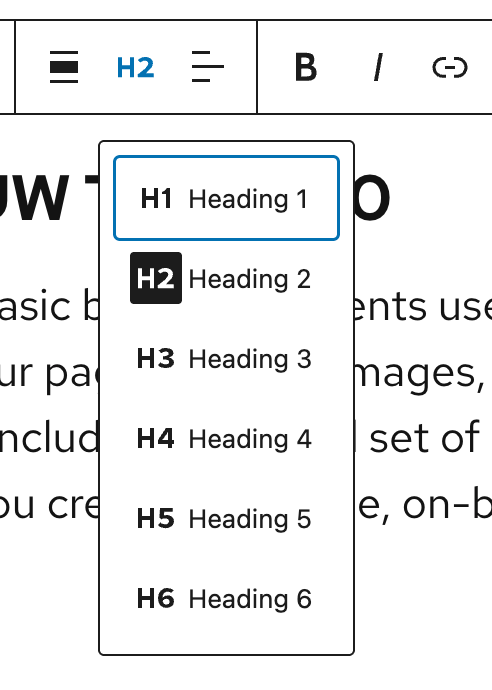
- Select the Heading block
- Choose the heading level (H1–H6) from the block toolbar
If you need help changing the heading level, visit the WordPress documentation on changing heading levels.
Change font size, not the heading level
Changing heading levels only to adjust visual size can make pages harder to navigate and less accessible, especially for screen reader users.
If you want a heading to look bigger or smaller, use the Size dropdown under Typography in the styles panel for a block. This lets you pick different font sizes without changing the actual heading level.
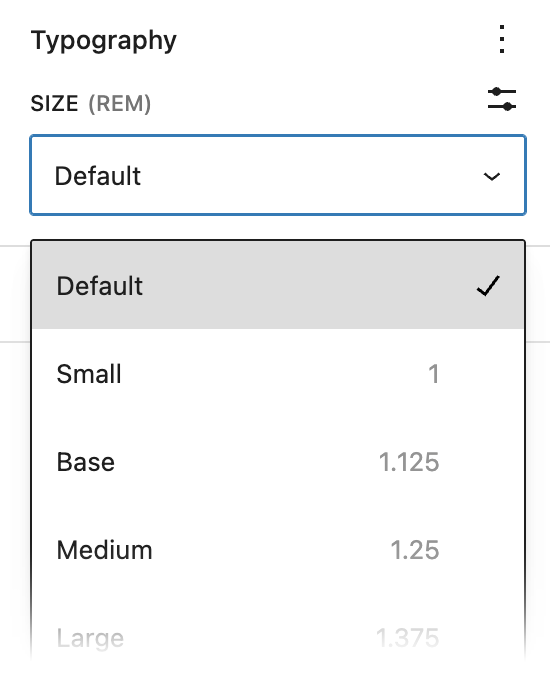
For additional guidance on accessible titles and headings, review the Digital accessibility fundamentals guide from the Center for User Experience.
Style settings
For guidance on visual styling for headings and text, visit Design best practices.
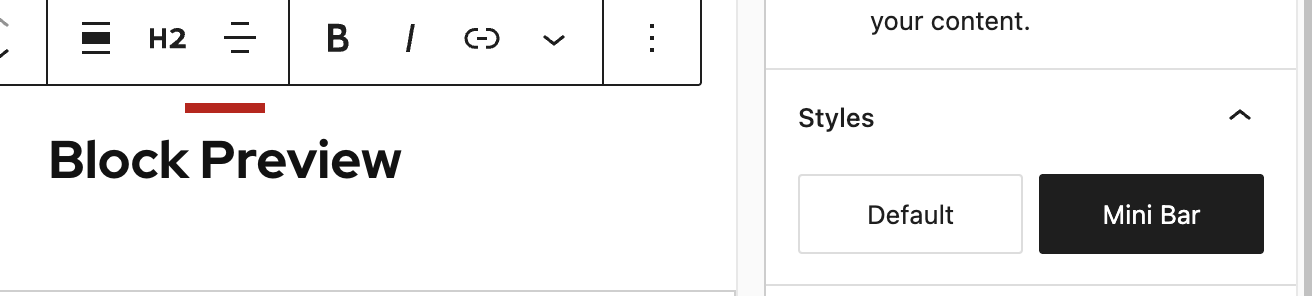
Red Mini Bar style
You can show or hide the Red Mini Bar in the block settings sidebar for the Title or Heading block. It is enabled by default on new page titles.
Heading links
The Heading block can be styled so the link underline appears only on hover. You can hide the link underline in the Heading block settings under Heading links. The hover underline provides a clear visual cue that the heading is a link.
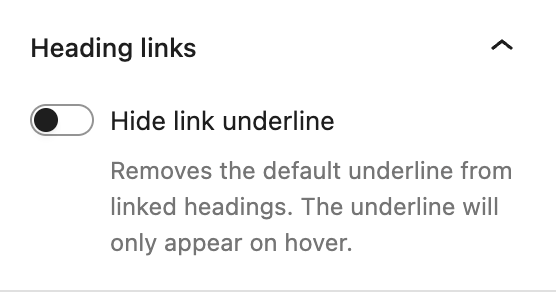
This option works best in layouts with many linked headings, such as news, events, or post listings, where persistent underlines can add visual noise. Use it only in familiar listing layouts where all headings behave consistently and users expect each heading to link to full articles or details pages.
In other contexts, keep links underlined to provide a clear, accessible cue.