Working with page titles and headings
Last updated:
Page titles and headings help people understand what a page is about and scan its content. They also provide structure that people using screen readers can use to navigate a page.
For most pages and posts:
- Keep the Title block as the page’s H1.
- Use Heading blocks for sections within the page.
- Use heading levels in order based on content structure.
- Change the styling, not the heading level, when you only want a heading to look different.
On this page
Use one H1 for the main page title
Every page needs a clear main heading, or H1. The H1 describes the main topic of the page and helps people understand what the page is about.
For most pages, the Title block should be the H1. Pages and posts include a Title block by default
Fix a missing H1
If a page is missing an H1, UW Theme 2.0 displays a notification in the editor.

You can fix the issue in one of these ways:
- Add a Title block: Recommended for most pages.
- Choose a title pattern: Add a predefined layout that includes the page title.
- Use an existing Heading block as the H1: Use this when the visible main heading must be slightly modified from the page title.
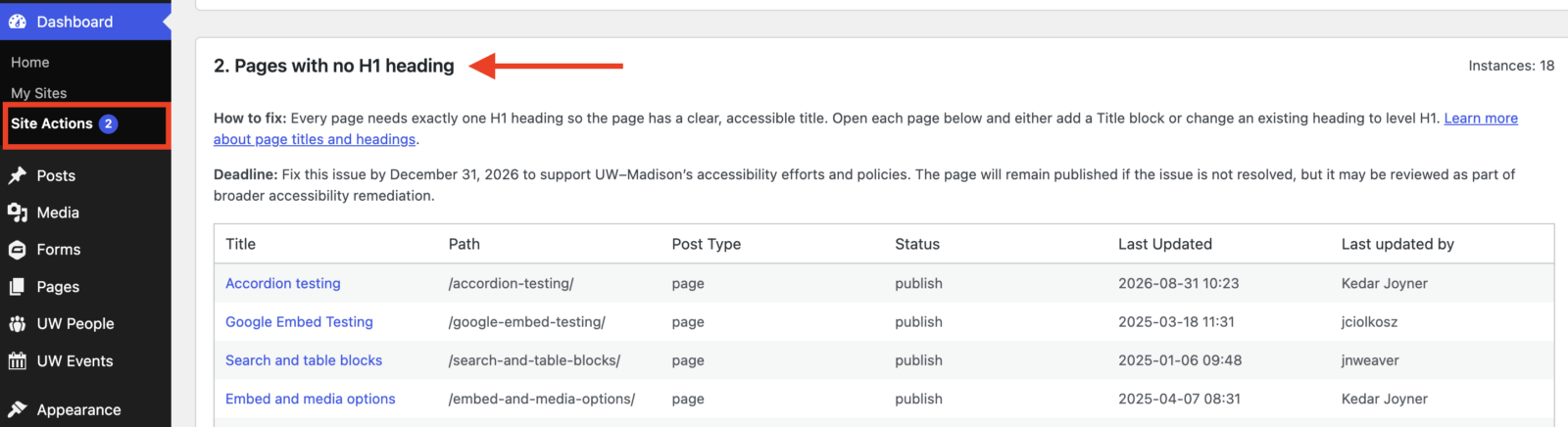
Use the Site Actions Dashboard to find existing pages on your site that do not have an H1. The dashboard lists affected pages under Pages with no H1 heading so you can open each page and fix the issue.
Homepage exception
Homepages work differently from other pages.
On the homepage, the Site Title in the header serves as the H1.
If a Title block appears on a page that is set as the homepage, remove it to avoid multiple H1s for accessibility. Add the Heading block set to H2 instead.

How page titles work
The page title is the name of your page in WordPress. By default, the Title block displays that title on the page and serves as the H1.
In the UW Theme, you’ll usually work with two blocks for page titles and headings:
- Title block: Displays the page or post title and serves as the H1 by default.
- Heading block: Organizes sections within the page, usually beginning with H2.
For most pages, use the Title block as the H1.
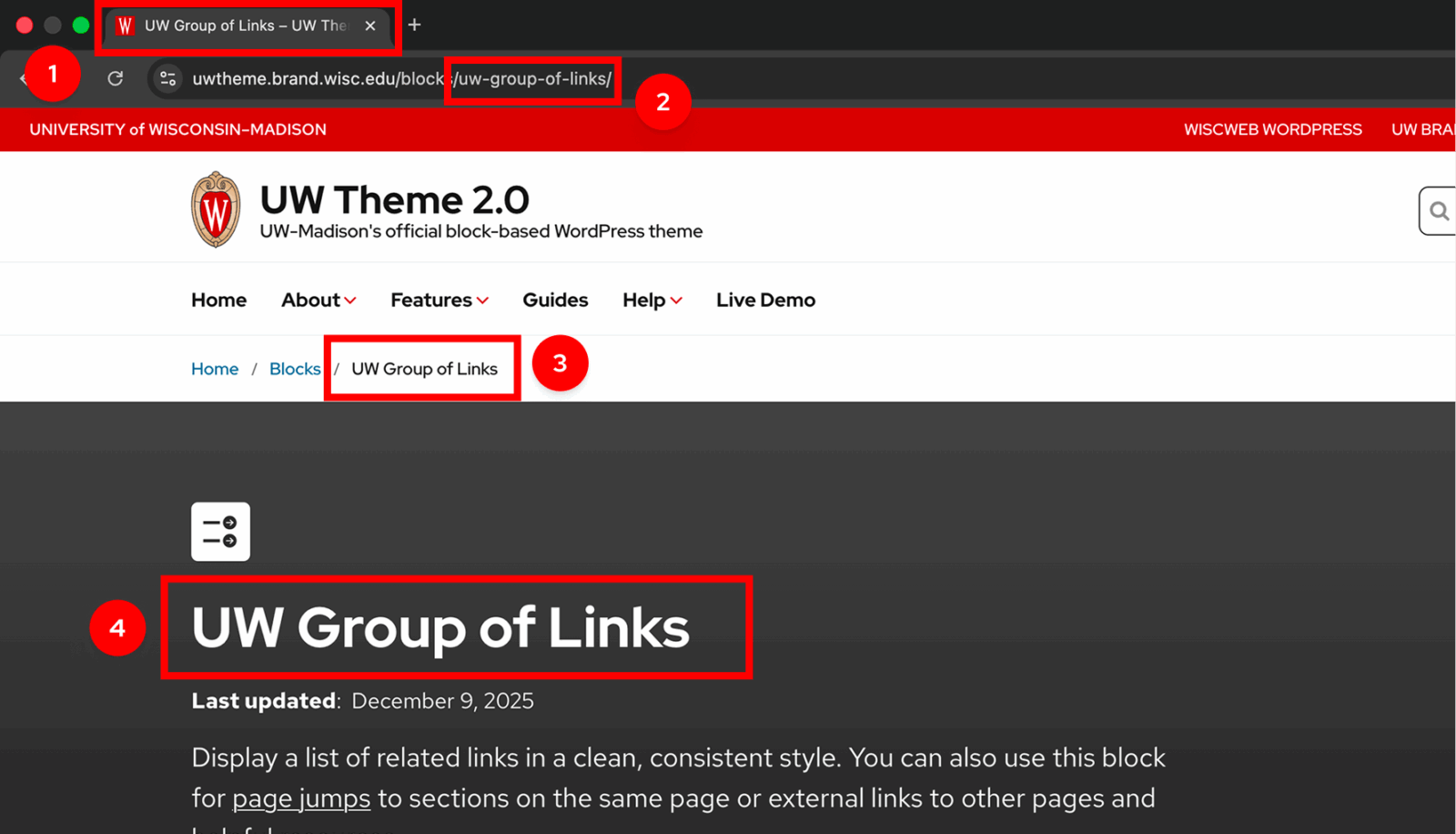
The page title appears in several places:
- The browser tab
- The page URL (also called the Slug in WordPress)
- Breadcrumbs and navigation
- The main heading (H1) displayed on the page
Because the page title can be reused in several places, use wording that clearly describes the page.
Use accessible heading levels
Heading help organize your page so people can understand how sections relate to one another. They also give screen reader users a clear way to navigate the page.
Use heading levels in a logical order based on the structure of your content, not how large or bold you want the text to appear. Do not skip heading levels.

Bad heading structure
- (H1) Undergraduate scholarships
- (H3) Who can apply – H2 was skipped
- (H2) How to apply
- (H4) Application materials – H3 was skipped
- (H3) Application deadlines
- (H2) After you apply

Good heading structure
- (H1) Undergraduate scholarships
- (H2) Who can apply
- (H2) How to apply
- (H3) Application materials
- (H3) Application deadlines
- (H2) After you apply
For more guidance on heading levels and page titles, see UW’s Digital Accessibility Fundamentals guide to headings and titles.
Change heading levels in WordPress
The Title block for posts and pages is always H1. For most pages, keep it as the page’s main heading.
The Heading block start as H2 by default and is used for the primary content sections of your page. Use lower heading levels, such as H3 and H4, for subsections within those sections.
To change the heading level of a Heading block:
- Select the Heading block
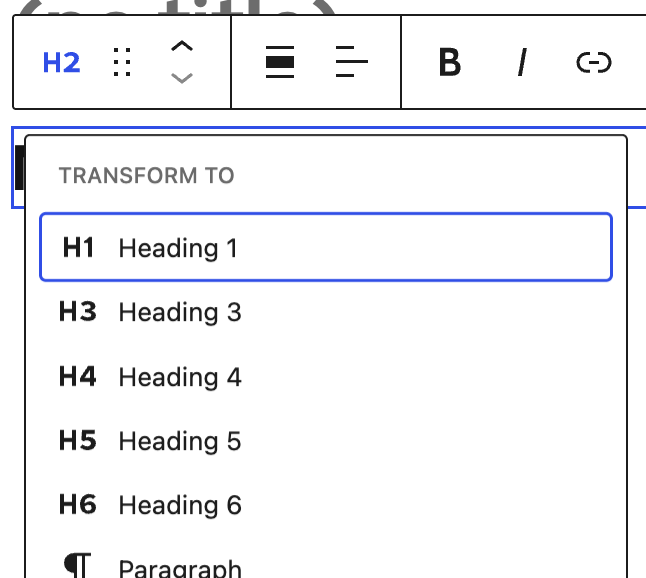
- Select the heading level in the block toolbar
- Choose the level that matches the structure of the page
You can also type /h2, /h3, /h4, /h5, or /h6 in the editor to quickly add a Heading block at that level.
Check your heading structure
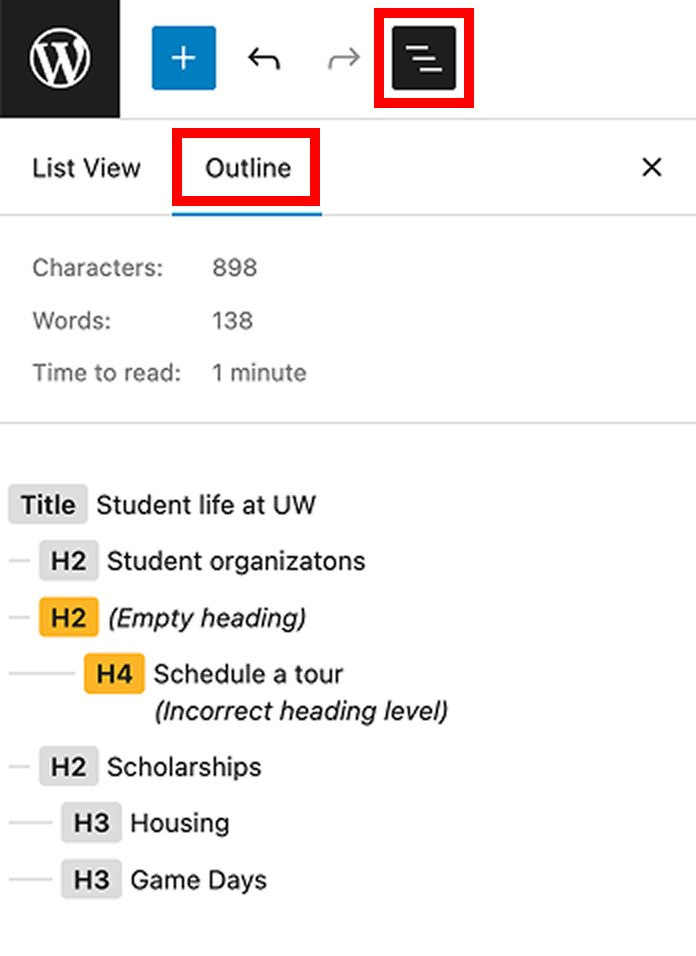
Use the Outline tab in WordPress Document Overview/List View to quickly review your heading structure. The outline displays headings in order so you can spot skipped levels or other structural problems.
For a more complete accessibility check, use a scanning tool such as the WAVE browser extension or UW–Madison’s Dubbot accessibility scanning software. These tools can help identify heading and other accessibility issues that may not be obvious from the WordPress outline alone.
Change font size instead of heading level
If you only want a heading to look larger or smaller, change its styling instead of changing the heading level so that your content stays accessible.
To change the font size:
- Select the Heading or Title block
- Open the block settings sidebar
- Under the Typography section, select a font size
This lets you pick different font sizes without changing the actual heading level.
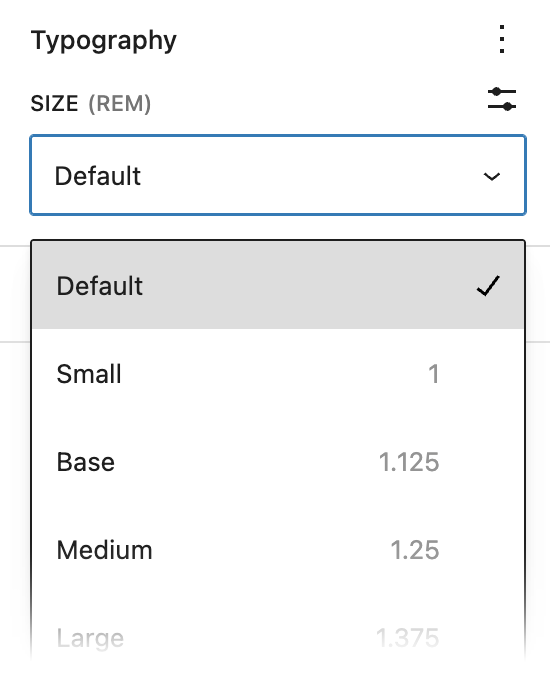
Change how the page title appears
For most pages, keep the Title block as your H1 and use the page title as its text.
In some cases, you may want the visible H1 to use different wording or appear somewhere else on the page. For example, you may want a shorter page title for navigation and a longer, more descriptive H1 on the page.
If you want the page title to appear differently, start by changing its layout. In many cases, you can keep the Title block instead of replacing it with a Heading block.
Create a page title layout
Start with a pattern from the Page Title category when one fits your layout. These patterns already include the Title block.
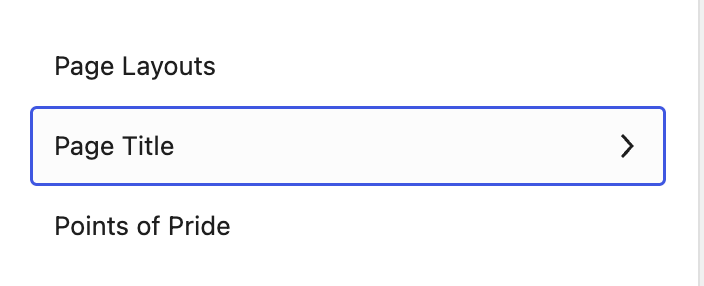
You can also customize another pattern, such as a Banner, to use as your page title layout.
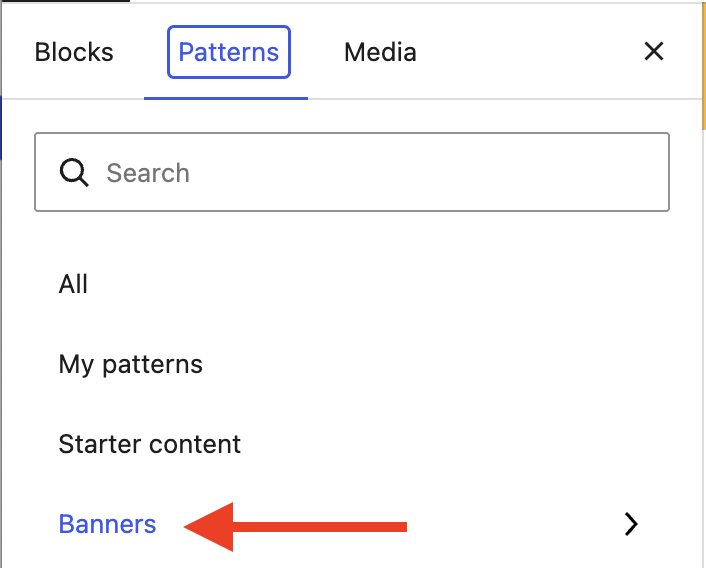
To use a Banner pattern:
- Select a pattern from the Banners category
- Select the Heading block inside the Banner
- Open the block transform menu and select Title
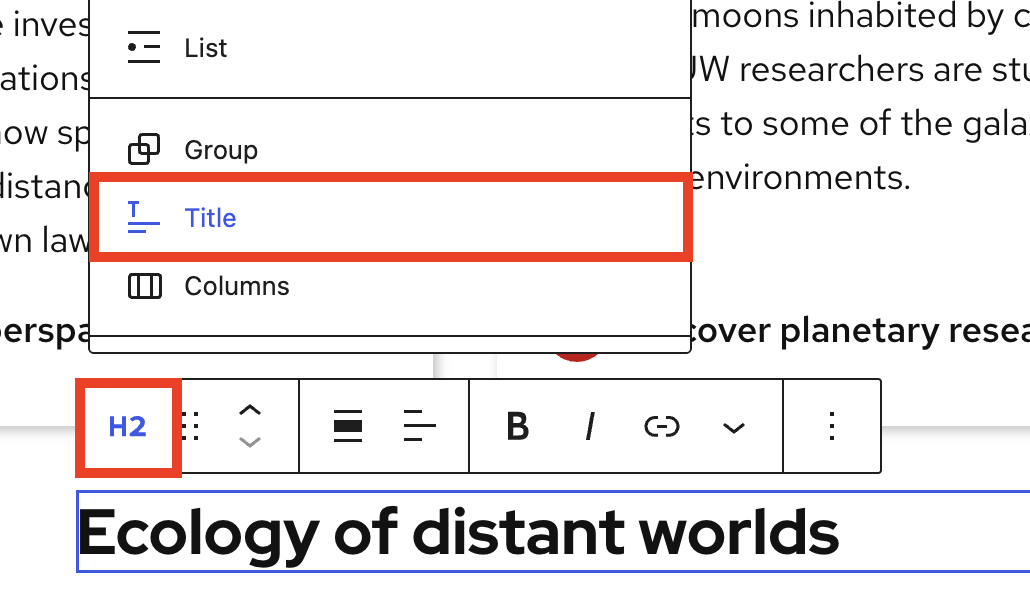
- Remove the original Title block from the page so the page has only one H1.
The Title block inside the Banner will display the WordPress page title and serve as the page’s H1.
Replace the Title block with a Heading block
If the page title needs to differ from the main heading shown on the page, remove the Title block and add a Heading block set to H1. The page should still have one clear H1.
To replace the page title accessibly:
- Remove the Title block from the page
- Add a Heading block
- Change the heading level from H2 to H1
Removing the Title block does not remove the page title in WordPress. You can still rename the page title at any time.
Refer to the WordPress Work with Blocks guide for guidance on how to add and remove blocks.
Rename the page title
You may want to rename the page title if you replaced the Title block with a Heading block. The page title appears in several places such as the browser tab and breadcrumbs.
To rename it:
- Open the page settings sidebar
- Open the Actions menu (three dots)
- Select Rename
- Update your page title
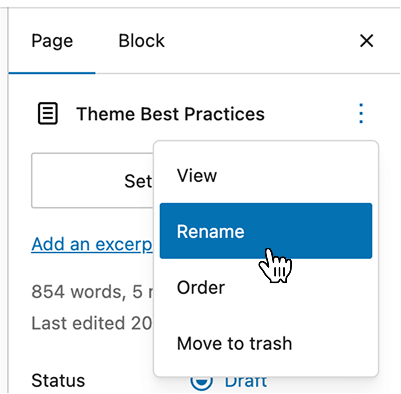
Renaming the page title does not automatically update the page URL, or what WordPress refers to as the slug. You can edit the Slug in the Page/Post Settings sidebar.
Changing the URL of a published page can cause visitors using the old address to encounter an error. Set up a redirect so visitors are automatically sent to the new URL. If your site is hosted on the WiscWeb WordPress Service, follow the WiscWeb guidance for setting up redirects.
Title and heading style settings
The Title and Heading blocks include optional style settings that change how headings look without changing their heading level or page structure.
To access these settings:
- Select the Title or Heading block
- Open the block settings in the editor sidebar.
Red Mini Bar
Use the Red Mini Bar setting to show or hide the red line above a Title or Heading block.
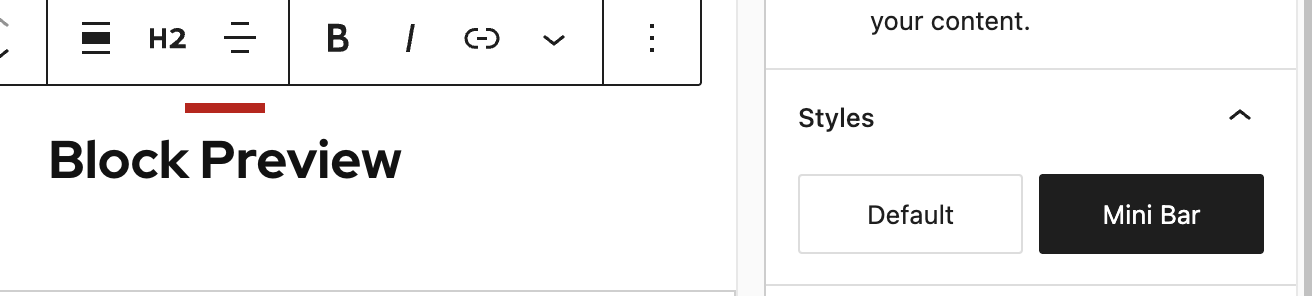
For guidance on when and where to use the Red Mini Bar, refer to Design best practices.
Heading links
The Heading block can be styled so the link underline appears only on hover. Turn on Hide link underline in the Heading block settings under Heading links.
To hide the link underline:
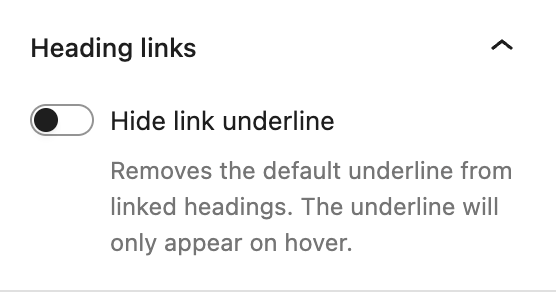
This option works best in familiar listing layouts, such as news, events, or post listings, where headings consistently link to more information. In these layouts, users are more likely to recognize the headings as links from the surrounding context, and removing persistent underlines can improve readability and reduce visual clutter.
In other contexts, keep link underlines visible so people have a persistent visual cue that the heading is also a link.
UW Heading highlight
Add UW-branded red or white color band behind each line of text in a Title or Heading block when placed inside a Cover block. Turn on the Enable heading highlight in the Heading or Title block under UW Heading Highlight.
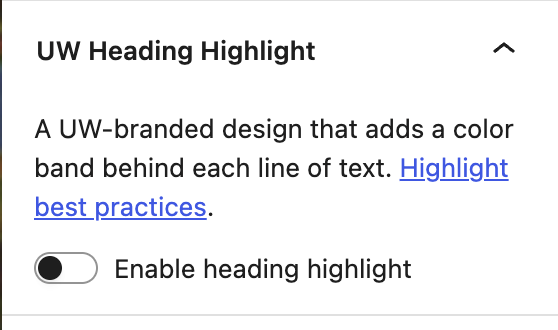
Refer to UW Heading Highlight guide for design best practices.
Get more help
WiscWeb sites
If your UW Theme 2.0 site is hosted in the WiscWeb WordPress Service, contact their support team for help.
Non-WiscWeb sites
If you manage or develop a custom
UW Theme 2.0 site outside of WiscWeb, email the UW Theme team.
Weekly Office Hours
Get one-on-one help with design, accessibility, and WordPress in weekly office hours.
Not sure who to contact? Email the UW Theme Team or find additional resources.