UW Events Plugin
Last updated:
The UW Events Plugin is a custom-built tool for creating, managing, and displaying events. Use the Events List block to display your events anywhere on your site.
Events created with this plugin do not display on the campus-wide events calendar (today.wisc.edu).
On this page
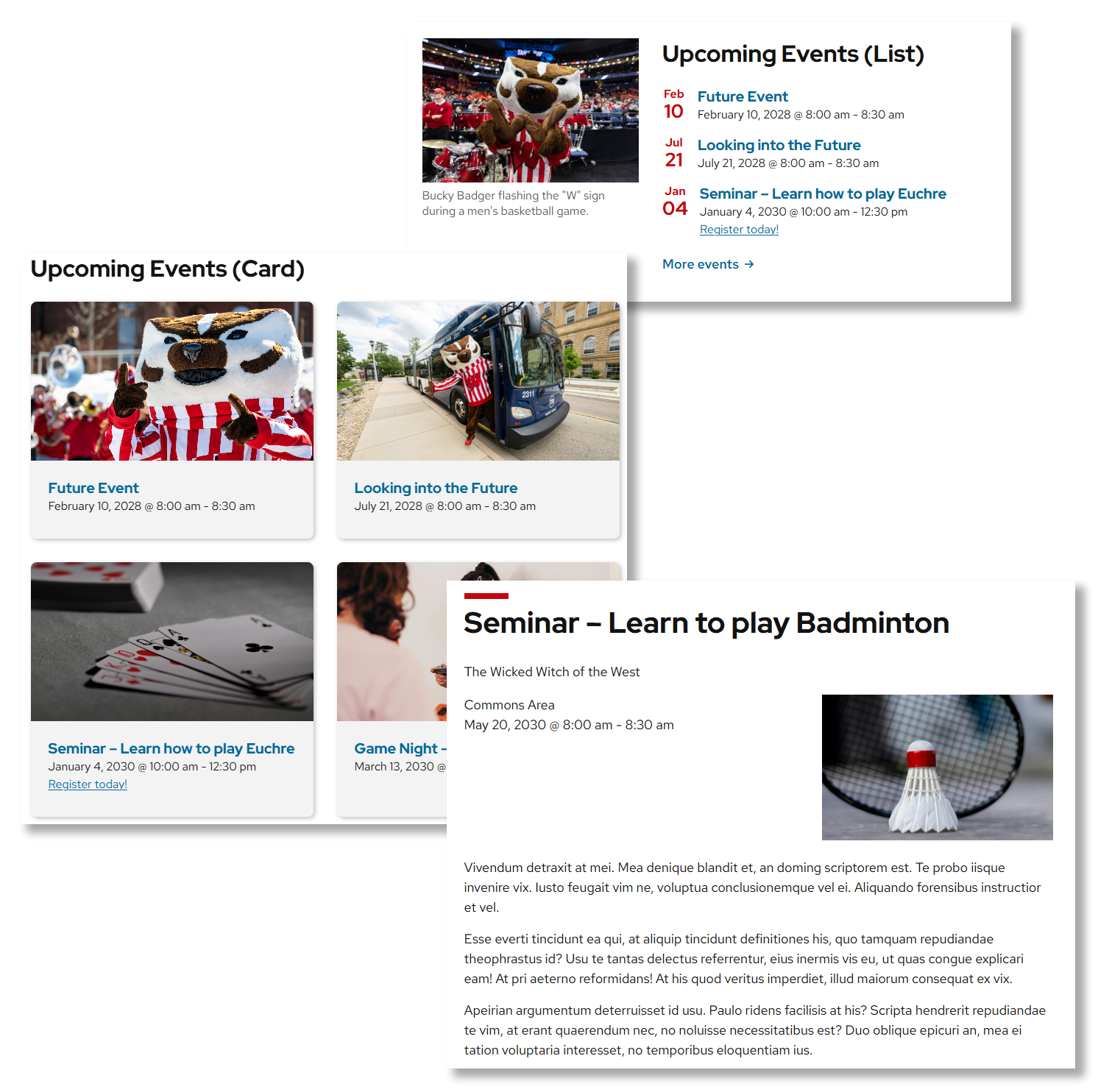
About the plugin
⚠️ Consider using today.wisc.edu
This plugin is separate from today.wisc.edu, UW’s official campus calendar. If your events could benefit from broad campus interest (events open to all of campus), we recommend submitting events to today.wisc.edu instead. Use the today.wisc.edu block to display events from the campus calendar on your site.
Create events
Information about your upcoming schedule of events, programs, meetings, and other occasions can be displayed on your site by creating custom posts.
Organize events using categories
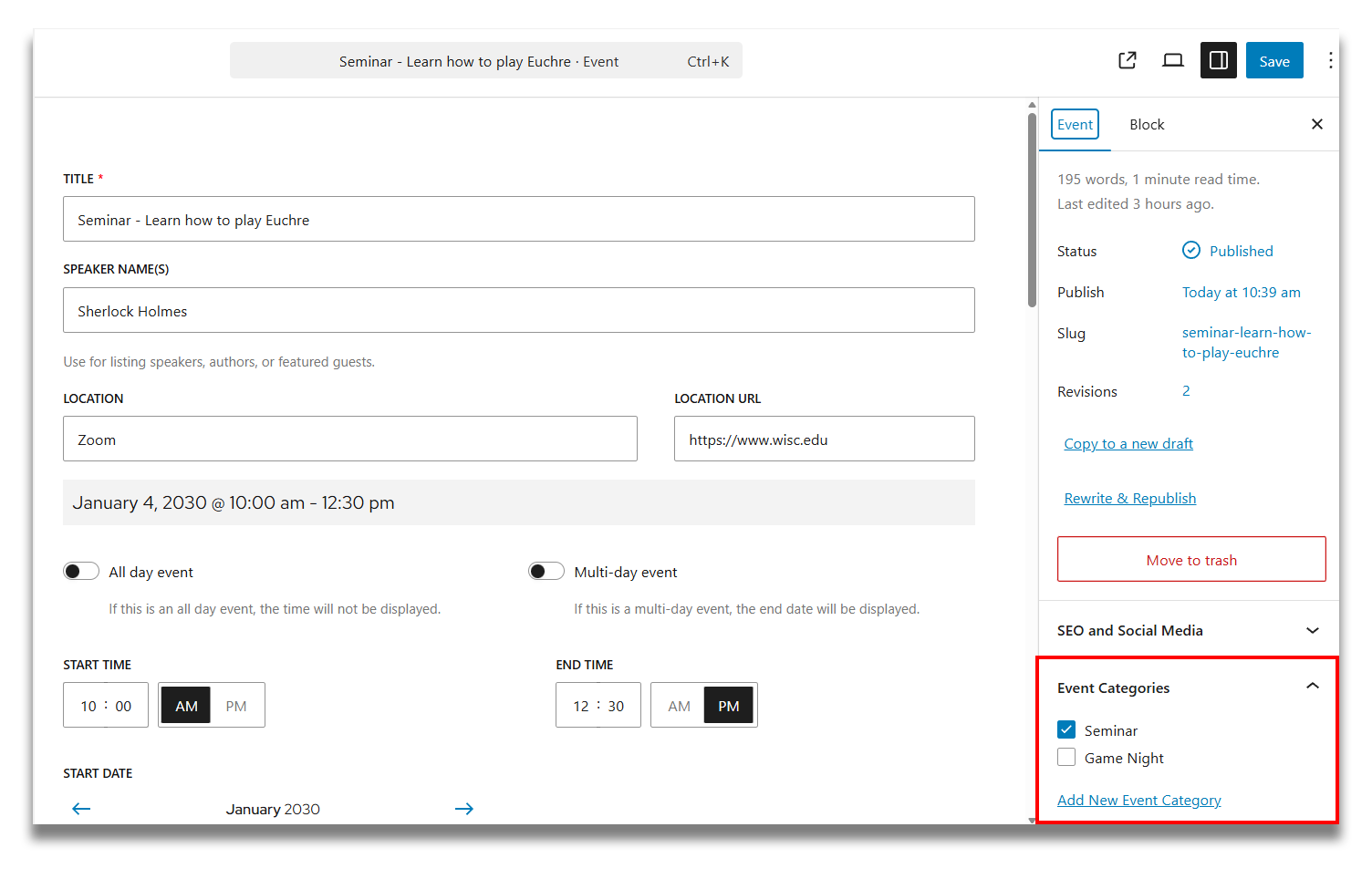
Use Event Categories to group events by certain types (e.g., Seminar, Meeting, Lecture, Resources, Movies). Categories power the ability to choose which events can appear based on the content of your page(s).
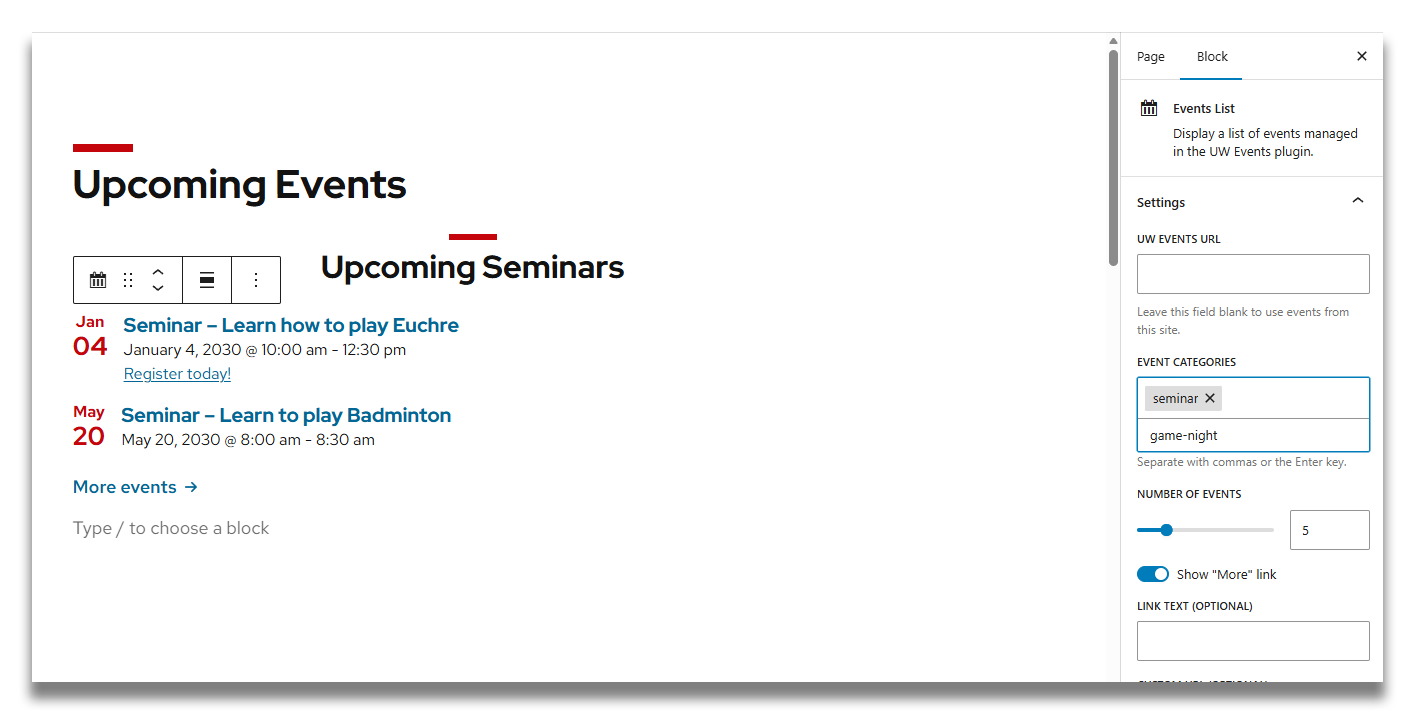
Display with the Events List block
Place the Events List block on any page or post to create a listing of events. The block provides several settings to customize the look of the list. Patterns will enable more flexible event displays.
How to use
Enable the plugin
Go to the WordPress Admin > Plugins > Find UW Events Gutenberg and click Activate.
Create a new event
There are two different ways to add a new event.
- Go to WordPress Admin > UW Events > Click on the Add New Event button in the top left.
- Go to the WordPress Admin > UW Events > Click on Add New Event in left menu.
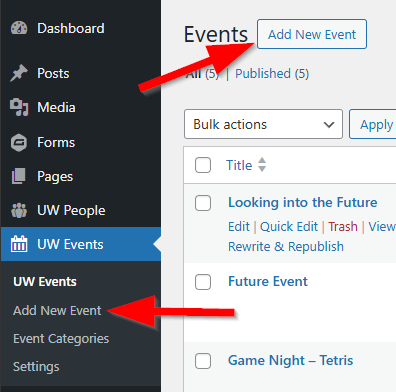
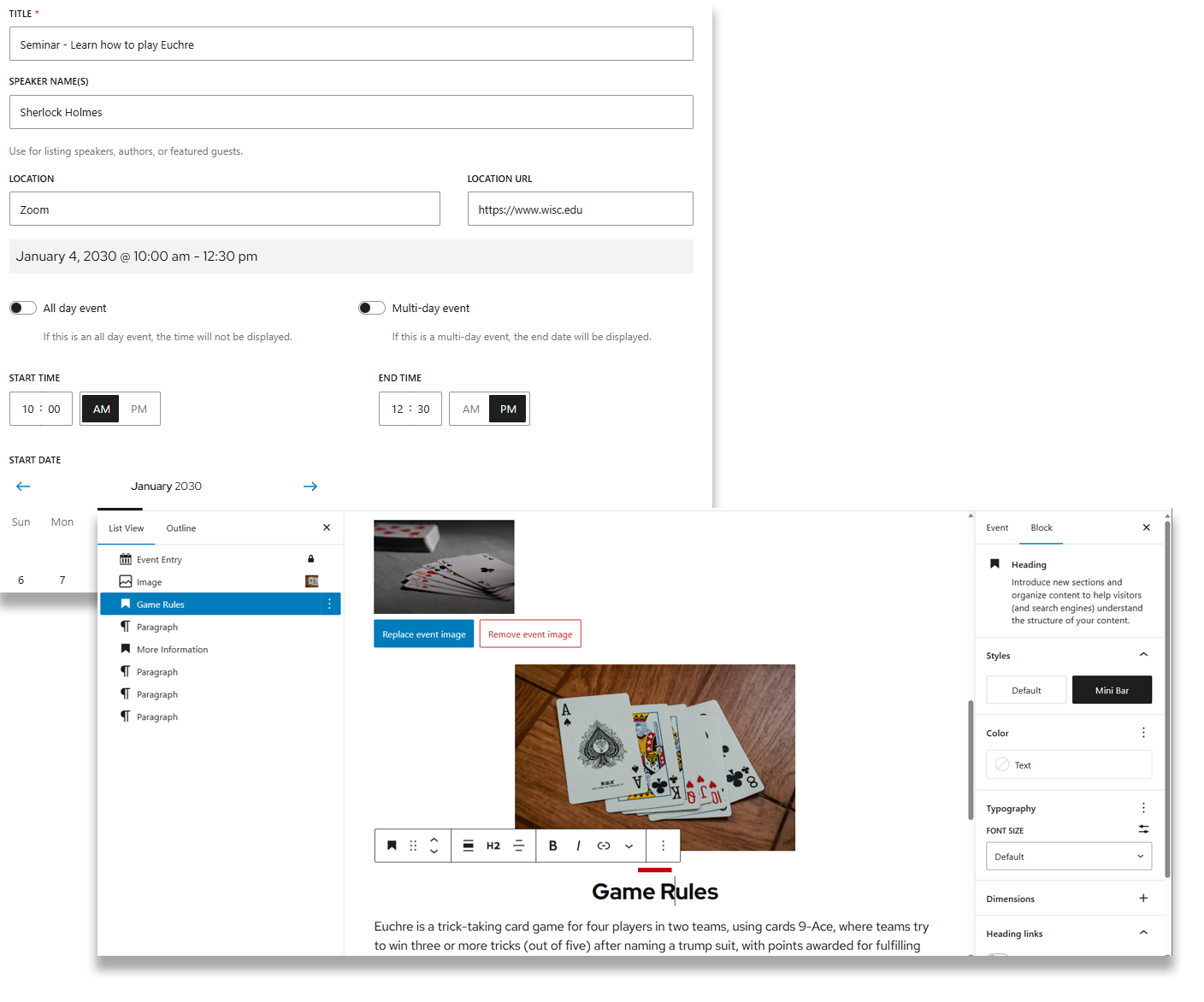
You will be presented with the Edit event details screen to add information about your event. The editing screen is divided into three main areas (see image below):
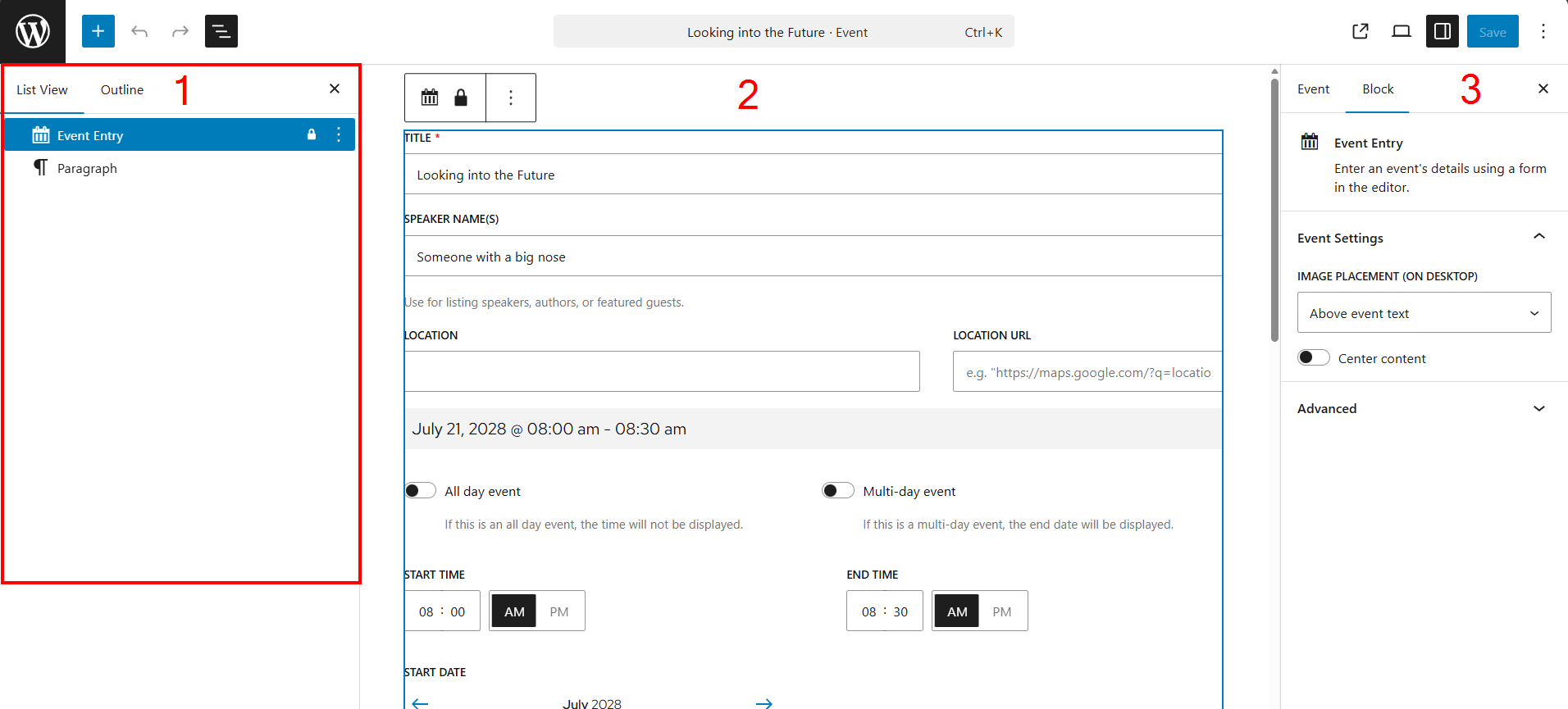
List View (left column)
Open the List View to see all blocks on the page.
Do not remove the Event Entry block (lock icon). It stores structured data that powers the Events List block. If deleted, the fields are lost, and the event must be recreated.
Main editor area (middle column)
- Enter the event’s details: title, speaker(s), location and location URL (such as a map pin), day and time information, and an additional URL and URL text if desired. You can also add an image to this event.
- Add event information or extra content below the input fields using blocks (headings, text, links, images).
Page settings sidebar (right column)
- Add an excerpt (200 characters or less recommended) to show in people listing layouts.
- Enter SEO and Social Media details to control how the profile looks when shared.
- Assign Event Categories; these allow you to customize what events appear in different locations within your site.
Event Categories
Event Categories help you group events together to make them easier to use within your site based on the needs of your content. For example, if you have a page dedicated to upcoming lectures, you could use an Events List block and only show the events you have categorized as “Lecture Series.”
Display events on your site
After creating events, you can now display them within your site using the Events List block, which is also activated as part of this plugin. Add the block to a page to build your events list as part of your content.
Recommendations

When to use
- You want to provide visitors with a view of “what’s coming up” for your department or program.
- You have events that cover different areas of your engagement, such as lectures, seminars, meetings, or deadlines.
- Provide visitors with a casual and quick way to scan your page to gain knowledge of what’s going on in the near future.

When to consider something else
- You only have a single upcoming event that you want to highlight – use patterns or create your own layout with blocks.
- When you want to highlight deadlines and key dates, use a list or other type of content delivery that doesn’t require creating events.
- If an event needs campus-wide visibility, post it to today.wisc.edu instead and use the today.wisc.edu block to list events on your site. We recommend this approach for most UW sites.

Usability and accessibility
Event details
- Event images should have alt text. Learn how to create effective alternative text.
- Keep excerpts for events short (200 characters or less).
- Make sure any additional content added below the event details have the correct heading levels (H2, H3, H4, etc.).
- Keep event titles short and pointed to keep your lists scannable.